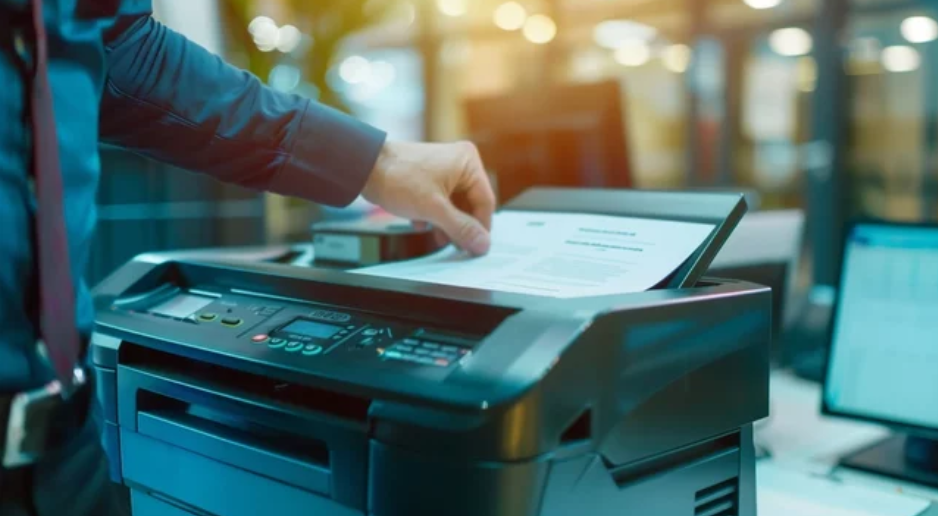
Ink cartridge recognition errors are among the most frustrating issues printer users face. You install a new cartridge—sometimes even a genuine one—and instead of printing, your machine displays messages like “Cartridge Not Recognized,” “Incompatible Cartridge,” “Cannot Detect Ink,” or “Replace Cartridge.”
The good news? These problems are usually easy to fix with simple steps, and you rarely need a technician. In this detailed guide, you’ll learn why ink cartridge recognition errors happen, how to fix them quickly, and how to prevent them in the future.
What Causes Ink Cartridge Recognition Errors?
Printers use sensors and electrical contacts to detect ink cartridges. If anything disrupts this communication, your printer may fail to recognize the cartridge. The most common causes include:
- Dirty or blocked cartridge contacts
- Protective tape still attached to the cartridge
- Firmware conflicts
- Incorrect cartridge installation
- Using non-original or incompatible cartridges
- Low-quality refills
- Expired or damaged cartridges
- Internal printer memory errors
Understanding the root cause makes troubleshooting faster and more effective.
1. Remove and Reinstall the Cartridge Properly
The first and simplest step is to reseat the cartridge.
How to Do It
- Turn off your printer and open the access door.
- Remove the problematic cartridge.
- Wait a few seconds and reinstall it firmly.
- Listen for a “click” to ensure it’s locked correctly.
Sometimes the cartridge simply wasn’t inserted properly.
2. Check and Clean the Electrical Contacts
Oxidation, ink residue, or dust on the gold/copper contacts can interrupt the connection between the printer and cartridge.
How to Clean the Contacts
- Turn off the printer and unplug it.
- Remove the cartridge.
- Use a dry, lint-free cloth to gently clean the copper contacts.
- Also clean the printer’s internal contacts where the cartridge sits.
- Reinsert the cartridge and restart the printer.
Avoid using alcohol unless recommended by the manufacturer, as it may damage sensitive components.
3. Remove the Protective Tape or Seal
New ink cartridges come with protective tape that covers the printhead or vent hole. If you forget to remove it, the printer may not recognize the cartridge or allow ink to flow.
Check For:
- Blue or yellow plastic tape on the printhead
- Stickers blocking the vent hole
- Plastic clips that must be removed before installation
Make sure all seals are removed before printing.
4. Restart the Printer to Reset Memory
Printers can sometimes “remember” old cartridge data, causing memory conflicts.
Quick Reset Method
- Turn off the printer.
- Unplug it from the power source for 1–3 minutes.
- Plug it back in and restart.
- Reinstall the cartridge.
This forces the printer to refresh and re-detect the cartridge.
5. Update Printer Firmware
Manufacturers often release firmware updates to improve performance—but sometimes these updates restrict the use of third-party cartridges.
To Fix Recognition Issues:
- Visit the official website of your printer brand.
- Download the latest firmware update.
- Install it and restart your printer.
If the update caused the issue, some printers allow rolling back firmware—check the support page.
6. Disable Automatic Firmware Updates
If you use compatible (third-party) cartridges, auto-updates may cause recognition errors in the future.
What to Do
- Go to your printer’s settings.
- Disable automatic firmware updates.
- Choose “Notify me first” or manual updates only.
This prevents your printer from blocking non-genuine cartridges unexpectedly.
7. Try a Printer Hard Reset
A deeper reset may be needed if the printer still refuses to detect the cartridge.
Full Reset Method
- Turn on the printer.
- Unplug the power cable while the printer is still on.
- Wait 60 seconds.
- Plug it back in and power up.
This clears residual memory errors that may cause recognition failures.
8. Check for Cartridge Compatibility
Not all cartridges work in all models—even if they look identical.
Check For:
- Correct model number
- Region-specific cartridges
- XL vs standard versions
- Cartridges for different printer generations
If you bought the wrong cartridge, your printer won’t recognize it—period.
9. Replace Faulty or Damaged Cartridges
Sometimes the cartridge itself is defective.
Signs of a Faulty Cartridge
- Physical damage
- Ink leaking
- Broken chip
- Warped plastic casing
- Printer always rejects it even after cleaning and resets
If you suspect damage, return it for a replacement.
10. For Refillable or Remanufactured Cartridges
Third-party cartridges often use reset chips. If the chip fails or is incompatible, the printer will reject it.
Fix Options
- Replace the chip (if available)
- Use a different brand of compatible cartridge
- Reinstall using chip alignment instructions
Always purchase high-quality compatible cartridges from trusted suppliers.
11. Override Error Messages (If Available)
Some printers allow you to bypass errors and continue printing—especially older models.
Look for Options Like:
- “Continue printing”
- “Use cartridge anyway”
- “Override and proceed”
Note: This may disable ink level monitoring.
How to Prevent Cartridge Recognition Errors in the Future
✔ Use quality ink cartridges
Cheap or poorly manufactured cartridges often cause recognition errors.
✔ Keep your printer firmware up-to-date (with caution)
Update manually—don’t rely on automatic updates if you use third-party ink.
✔ Clean the printer regularly
Dust and dried ink can interfere with cartridge detection.
✔ Print regularly
Prevents ink drying and reduces printhead or chip issues.
✔ Store cartridges properly
Keep them upright, sealed, and away from heat or moisture.
When to Call a Technician
You may need expert assistance if:
- The printhead is damaged.
- The cartridge slot is bent or broken.
- The printer repeatedly fails to read any cartridge.
If repair costs more than a replacement, consider upgrading your printer.
Final Thoughts
Ink cartridge recognition errors are annoying, but in most cases, they’re easy to fix. By cleaning contacts, reinstalling cartridges, resetting your printer, and verifying compatibility, you can resolve the issue quickly and get back to printing without interruptions.
With regular printer maintenance and careful cartridge handling, you can prevent most recognition errors from happening again.
Also Read :