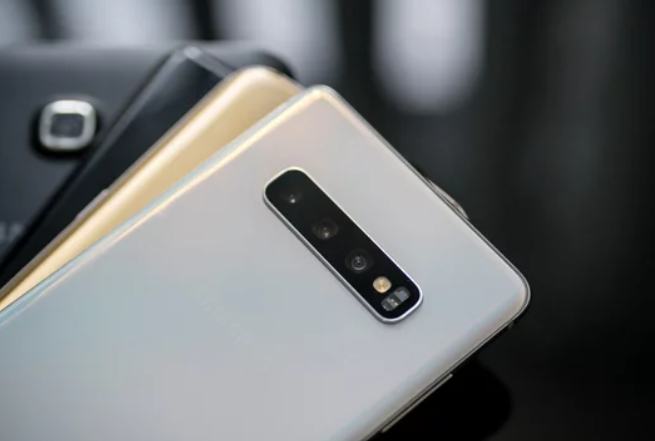
The Samsung Galaxy S26 Ultra is a powerful flagship smartphone packed with advanced features, a high-performance processor, and a sophisticated camera system. While it delivers an excellent user experience for most people, even premium smartphones can sometimes develop problems over time.
For beginners, these issues may seem confusing or difficult to solve. A slow phone, apps crashing, Wi-Fi not connecting, or rapid battery drain can make everyday use frustrating. Fortunately, most smartphone problems are simple to fix and do not require technical expertise.
This beginner-friendly guide explains common Samsung Galaxy S26 Ultra problems and easy solutions you can follow step by step.
Understanding Why Smartphone Problems Occur
Before trying to fix an issue, it helps to understand why problems happen. In most cases, the problem is not the hardware but the software or settings.
Common causes include:
- Too many apps running in the background
- Low storage space
- Temporary system glitches
- Outdated apps or software
- Poor network connections
Once you identify the cause, fixing the problem becomes much easier.
1. Restart Your Phone First
Many smartphone problems can be solved simply by restarting the device.
Why restarting works
Restarting clears temporary system memory and stops background processes that may be causing glitches.
How to restart
- Press and hold the power button.
- Tap Restart.
- Wait for the phone to reboot.
If your Samsung Galaxy S26 Ultra feels slow or apps are not working properly, restarting should always be the first step.
2. Fix Slow Performance
If your phone feels sluggish or apps take longer to open, several simple factors may be responsible.
Common causes
- Too many apps running simultaneously
- Storage space almost full
- Too many widgets on the home screen
Easy solutions
- Close apps you are not using
- Remove unnecessary widgets
- Free up storage by deleting unused apps or files
These small adjustments can greatly improve performance.
3. Solve Battery Drain Problems
Battery draining quickly is one of the most common smartphone complaints.
Possible reasons
- High screen brightness
- Location services running constantly
- Background apps using power
Beginner-friendly fixes
- Lower the screen brightness
- Turn off GPS when not needed
- Enable battery-saving mode
Checking battery usage in settings can help identify which apps are consuming the most power.
4. Fix Wi-Fi Connection Issues
Sometimes the phone may struggle to connect to Wi-Fi networks.
Quick fixes
- Turn Wi-Fi off and then on again
- Restart your router
- Move closer to the router
If problems continue, resetting network settings can refresh the connection.
5. Apps Crashing or Not Opening
Apps occasionally stop working due to outdated versions or temporary errors.
What you can do
- Update the app from the app store
- Clear the app cache
- Restart your phone
These steps usually restore normal app functionality.
6. Free Up Storage Space
Even though the Samsung Galaxy S26 Ultra offers large storage options, photos, videos, and apps can quickly fill it.
Signs of low storage
- Phone becoming slow
- Camera processing photos slowly
- Apps failing to install
Simple fixes
- Delete unused apps
- Remove duplicate photos
- Move files to cloud storage
Keeping some free space helps the system run efficiently.
7. Fix Bluetooth Problems
Bluetooth issues may prevent your phone from connecting to headphones, speakers, or cars.
Beginner solutions
- Turn Bluetooth off and on again
- Restart both devices
- Forget the device and reconnect it
This refreshes the connection and solves most pairing problems.
8. Fix Camera Issues
The camera on the Samsung Galaxy S26 Ultra is one of its most impressive features, but it may occasionally lag or fail to open.
Possible solutions
- Restart the phone
- Clear the camera app cache
- Update the camera software
These simple steps often fix camera glitches quickly.
9. Fix Fingerprint or Face Unlock Problems
Biometric security features sometimes stop recognizing your face or fingerprint.
Easy fixes
- Clean the screen and sensor area
- Re-register your fingerprint
- Improve lighting when using face unlock
Proper setup improves recognition accuracy.
10. Install Software Updates
Software updates improve performance, fix bugs, and add new features.
How to check for updates
- Open Settings
- Tap Software Update
- Select Download and Install
Keeping your Samsung Galaxy S26 Ultra updated helps prevent many problems.
11. Use Safe Mode to Find Problem Apps
If your phone continues to have problems, a third-party app may be responsible.
What Safe Mode does
It temporarily disables all downloaded apps.
Why it helps
If the phone works normally in Safe Mode, one of the installed apps is causing the issue.
You can then remove recently installed apps to fix the problem.
12. Reset Your Phone as a Last Option
If nothing else works, you may need to perform a factory reset.
Important reminder
A factory reset deletes all data, so always back up your files first.
This restores the phone to its original software condition and removes persistent software issues.
Tips to Keep Your Samsung Galaxy S26 Ultra Running Smoothly
Preventing problems is easier than fixing them. Follow these simple habits:
- Restart your phone occasionally
- Keep apps updated
- Avoid installing unknown apps
- Maintain enough free storage space
- Install software updates regularly
These practices help keep your phone fast and reliable.
Final Thoughts
The Samsung Galaxy S26 Ultra is built to deliver excellent performance and advanced smartphone capabilities. While occasional problems may appear, most of them are minor and easy to solve—even for beginners.
By following the simple troubleshooting steps in this guide, you can fix common issues such as slow performance, battery drain, connectivity problems, and app crashes without needing professional help.
With proper maintenance and regular updates, your phone will continue to deliver the powerful and smooth experience it was designed to provide. 📱
Also Read :