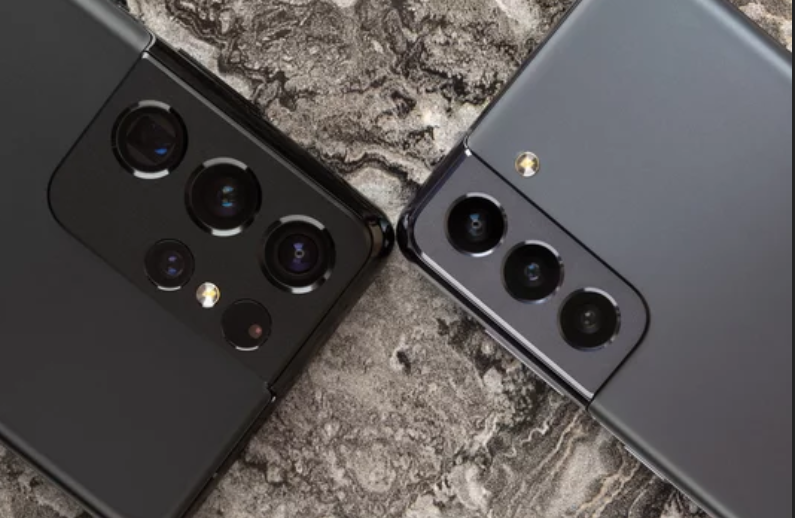
Battery drain is one of the most frustrating problems smartphone users experience. If your Samsung Galaxy S26 Ultra is losing power faster than expected, you’re not alone. Even though this flagship device comes with a powerful battery and advanced power management features, certain settings, apps, and usage habits can cause the battery to drain quickly.
The good news is that most battery problems can be solved quickly with a few simple adjustments. In this guide, you’ll learn why your Samsung Galaxy S26 Ultra battery drains fast and how to fix it quickly.
Why the Samsung Galaxy S26 Ultra Battery Drains Quickly
Before applying fixes, it helps to understand the common causes of fast battery drain.
Some of the most common reasons include:
- Too many apps running in the background
- High screen brightness and refresh rate
- Location services always active
- Poor network signal
- Outdated apps or system software
- Power-hungry apps
Once you identify the cause, fixing the problem becomes much easier.
1. Restart Your Phone
The fastest solution to many smartphone issues is simply restarting the device.
Why this helps
Restarting clears temporary system processes that may be consuming battery power unnecessarily.
What to do
- Press and hold the power button.
- Tap Restart.
- Wait for the phone to reboot.
This simple step can sometimes immediately improve battery performance.
2. Check Which Apps Are Draining Your Battery
Certain apps consume far more battery than others.
How to check battery usage
- Open Settings
- Tap Battery
- Select Battery Usage
If you notice an app using an unusually high percentage of battery, consider updating it or limiting its background activity.
3. Reduce Screen Brightness
The display is one of the biggest battery consumers on any smartphone.
Quick fixes
- Lower screen brightness manually
- Enable Adaptive Brightness
- Reduce screen timeout duration
These adjustments can significantly extend battery life.
4. Lower the Screen Refresh Rate
The Samsung Galaxy S26 Ultra supports a high refresh rate display for smoother visuals. However, higher refresh rates consume more battery.
Solution
Switch to a lower refresh rate when you don’t need ultra-smooth scrolling.
This simple change can noticeably reduce power consumption.
5. Turn Off Features You Don’t Use
Many built-in features run in the background and consume power even when not actively used.
Features to disable when unnecessary
- Bluetooth
- GPS location services
- NFC
- Wi-Fi scanning
Turning off unused features helps preserve battery life.
6. Enable Power Saving Mode
Power Saving Mode automatically reduces background activity and limits power usage.
Benefits
- Restricts background apps
- Reduces processor activity
- Lowers screen brightness
This feature can greatly extend battery life during heavy usage days.
7. Close Unnecessary Background Apps
Some apps continue running even after you close them.
How to fix it
- Open the recent apps screen
- Close apps you are not using
- Restrict background activity for rarely used apps
Managing background apps reduces unnecessary battery consumption.
8. Update Your Apps and System Software
Outdated apps sometimes contain bugs that drain battery power.
What to do
- Update all apps from the app store
- Check for system updates in settings
Updates often include performance improvements and battery optimizations.
9. Reduce Notifications and Background Sync
Many apps constantly check for updates in the background.
Quick fix
Disable notifications and background syncing for apps that are not essential.
This reduces network activity and power usage.
10. Check for Poor Network Signal
When your phone struggles to find a signal, it uses more power.
Signs of signal-related battery drain
- Battery drops quickly in areas with weak coverage
- Phone constantly switching between networks
Solution
Use Wi-Fi when available or enable airplane mode in areas with very poor signal.
11. Remove Problematic Apps
Sometimes a poorly optimized app can drain battery power rapidly.
Warning signs
- Phone becomes warm when using a specific app
- Battery usage shows one app consuming excessive power
If this happens, uninstall the app or replace it with a better alternative.
12. Reset Settings if Battery Drain Continues
If the battery still drains quickly on your Samsung Galaxy S26 Ultra, resetting system settings may help.
What this does
This resets system configurations without deleting your personal data.
It can fix hidden software conflicts that affect battery performance.
Tips to Maintain Long-Term Battery Health
Preventing battery problems is easier than fixing them. Follow these simple habits:
- Avoid letting the battery drop to 0% frequently
- Use original charging accessories
- Avoid overheating during charging
- Keep your phone updated
These practices help maintain strong battery performance over time.
Final Thoughts
The Samsung Galaxy S26 Ultra is designed to provide long-lasting battery life, but certain apps, settings, and system behaviors can cause unexpected battery drain. Fortunately, most battery problems can be solved quickly by adjusting settings, limiting background activity, and keeping the phone updated.
By following the tips in this guide, you can reduce battery drain, extend daily usage time, and keep your smartphone running efficiently. With proper management, your Samsung Galaxy S26 Ultra should easily last throughout the day without constant charging. 🔋📱
Also Read :