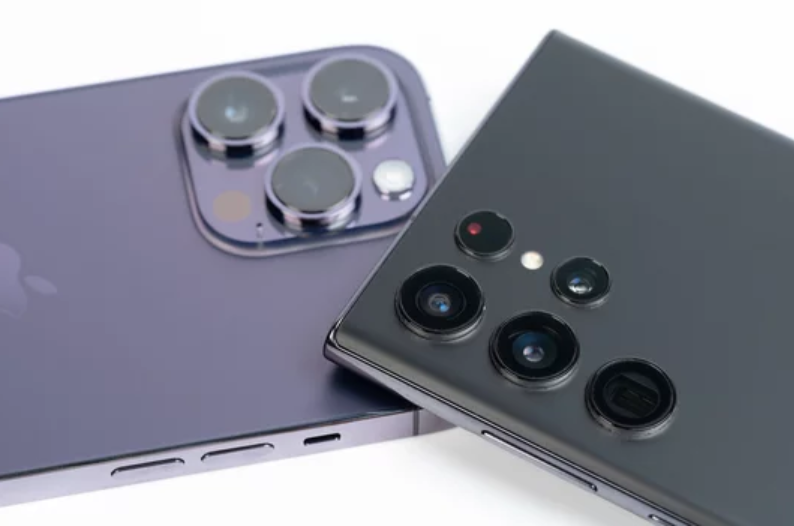
The Samsung Galaxy S26 Ultra is one of the most powerful smartphones on the market, designed for smooth multitasking, fast app launches, and high-performance gaming. Yet, even flagship devices can sometimes lag or freeze, leaving users frustrated. Lag can slow down navigation, cause apps to respond slowly, or make animations choppy.
The good news? Most lagging issues are software-related or caused by settings, apps, or storage, and they can be fixed without professional help. This guide provides proven solutions to eliminate lag and restore your Samsung Galaxy S26 Ultra’s smooth performance.
Why Your Samsung Galaxy S26 Ultra Might Be Lagging
Understanding the cause is the first step toward fixing lag. Common reasons include:
- Too many apps running in the background
- Low storage space
- Excessive widgets or live wallpapers
- Outdated apps or system software
- Background processes consuming RAM
- Poor network connectivity during app use
Once you identify the root cause, applying the correct fix becomes much easier.
1. Restart Your Phone
The fastest way to fix minor lag is simply to restart your phone.
Why it helps
Restarting clears temporary system memory, stops unnecessary processes, and refreshes the operating system.
How to do it
- Press and hold the Power button
- Tap Restart
- Wait for your device to reboot
Most minor lag issues disappear immediately after a restart.
2. Close Unnecessary Background Apps
Apps running in the background consume RAM and processing power, slowing down your phone.
How to fix it
- Open the Recent Apps screen
- Swipe away apps you aren’t using
- Restrict background activity for non-essential apps in Settings > Apps > [App Name] > Battery
Freeing RAM gives your device the resources it needs to run smoothly.
3. Free Up Storage Space
Low storage can severely impact performance, especially if your phone has less than 20% free space.
Signs storage is affecting performance
- Slow app launches
- Choppy animations
- Freezing during multitasking
How to fix
- Delete unused apps
- Remove duplicate photos, videos, or downloads
- Move large files to cloud storage
Adequate storage helps the Samsung Galaxy S26 Ultra operate efficiently.
4. Clear App and System Cache
Over time, cached files can become corrupted, causing apps or the system to lag.
How to clear app cache
- Open Settings
- Go to Apps
- Select the lagging app
- Tap Storage > Clear Cache
How to clear system cache
- Turn off your phone
- Boot into Recovery Mode
- Select Wipe Cache Partition
- Restart the phone
Clearing cache removes temporary files that may be slowing down the device.
5. Reduce Animations and Live Wallpapers
While visually appealing, animations, transitions, and live wallpapers consume processing power.
What to do
- Use static wallpapers
- Reduce or disable animations in Settings > Accessibility > Reduce Animations
- Limit home screen widgets
These changes make the interface feel faster and more responsive.
6. Update System Software and Apps
Outdated apps or software may have bugs that cause lag.
Fix
- Update all apps via the Play Store
- Install system updates in Settings > Software Update
Software updates often include performance improvements and bug fixes.
7. Disable or Limit Background Sync
Constant syncing uses CPU and network resources, contributing to lag.
How to fix
- Disable auto-sync for non-essential apps
- Limit background data usage in Settings > Connections > Data Usage
This frees up system resources and improves responsiveness.
8. Identify Problematic Apps
Some apps may be poorly optimized, causing consistent lag.
How to check
- Go to Settings > Battery > Battery Usage
- Look for apps consuming excessive resources
If one app is consistently causing lag, update it, clear its cache, or uninstall it.
9. Use Safe Mode to Test for Third-Party App Issues
Safe Mode disables third-party apps temporarily, helping you identify if an app is causing lag.
How to enter Safe Mode
- Press and hold the power button
- Tap and hold Power Off
- Select Safe Mode
- Observe if lag persists
If the phone runs smoothly in Safe Mode, a third-party app is likely responsible.
10. Factory Reset as a Last Resort
If none of the above fixes work, a factory reset may be necessary.
Important
- Backup all personal data before performing a reset
- Go to Settings > General Management > Reset > Factory Data Reset
This restores the phone to its original software state, eliminating persistent lag caused by software issues.
Tips to Prevent Lag on Samsung Galaxy S26 Ultra
- Restart your phone periodically
- Keep storage free (at least 20–25%)
- Limit home screen widgets and live wallpapers
- Update apps and system software regularly
- Avoid running too many heavy apps simultaneously
Following these habits keeps your Samsung Galaxy S26 Ultra fast, responsive, and enjoyable to use.
Final Thoughts
Lag on a Samsung Galaxy S26 Ultra is almost always related to software, storage, or background activity rather than hardware issues. By applying the fixes outlined above—such as clearing cache, updating apps, reducing unnecessary animations, and managing background apps—you can restore smooth performance and enjoy the powerful experience your device was designed to deliver. ⚡📱
Also Read :