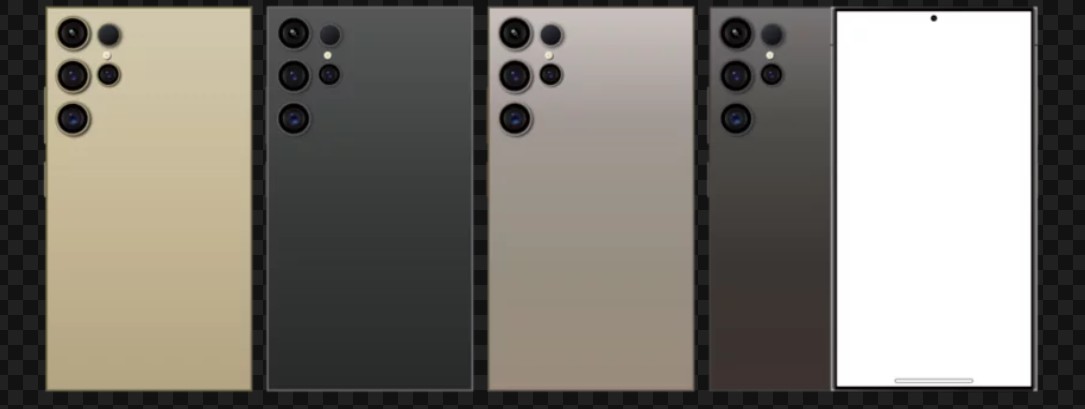
Even flagship smartphones like the Samsung Galaxy S26 Ultra can feel slow or sluggish over time. Heavy usage, background apps, low storage, and software glitches can all impact performance. The good news is that most slowdowns are easy to fix. With the right adjustments, your Galaxy S26 Ultra can feel as fast and responsive as the day you bought it.
Here are 10 effective ways to speed up your Samsung Galaxy S26 Ultra.
1. Restart Your Phone Regularly
A quick restart clears temporary files, stops unnecessary background processes, and refreshes system memory.
How to do it:
- Press and hold the power button
- Tap Restart
- Wait for your phone to reboot
Restarting daily or every few days helps maintain optimal speed.
2. Close Background Apps
Apps running in the background consume RAM and processing power.
Fix:
- Open the Recent Apps screen
- Swipe away apps you’re not using
- Restrict background activity for seldom-used apps in Settings > Apps > [App Name] > Battery
This frees up memory and CPU resources.
3. Free Up Storage Space
Low storage can drastically reduce performance.
Tips:
- Delete unused apps
- Remove old photos and videos or move them to cloud storage
- Clear cached files
Aim to keep at least 20% of storage free to ensure smooth operation.
4. Clear Cache Data
Temporary cache files can become corrupted, slowing down your phone.
How to clear:
- Go to Settings > Apps > [App Name] > Storage > Clear Cache
- For system cache, boot into Recovery Mode and select Wipe Cache Partition
Clearing cache helps apps and the system run more efficiently.
5. Reduce Animations and Effects
Fancy animations, transitions, and live wallpapers can tax the processor.
Fix:
- Use static wallpapers
- Remove unnecessary widgets
- Go to Settings > Accessibility > Reduce Animations
Reducing visual effects improves responsiveness.
6. Update Apps and System Software
Outdated software may contain bugs or performance issues.
What to do:
- Update all apps through the Play Store
- Check for System Updates under Settings > Software Update
Keeping your device updated ensures maximum speed and stability.
7. Limit Background Sync and Notifications
Continuous syncing and notifications consume CPU and battery, slowing performance.
Fix:
- Disable auto-sync for non-essential apps
- Limit notifications for apps you rarely use
Reducing background activity frees resources for tasks you care about.
8. Remove or Replace Heavy Apps
Some apps, especially games or social media apps, can slow down your device.
Tips:
- Check battery and memory usage in Settings > Battery > Battery Usage
- Uninstall or replace apps that consume excessive resources
This helps reduce lag and improve responsiveness.
9. Use Safe Mode to Diagnose Problems
Safe Mode disables all third-party apps temporarily, allowing you to identify if a specific app is causing slowdowns.
How to enter Safe Mode:
- Press and hold the power button
- Tap and hold Power Off
- Select Safe Mode
- Observe performance
If the phone runs smoothly in Safe Mode, a third-party app is likely the culprit.
10. Factory Reset as a Last Resort
If your Samsung Galaxy S26 Ultra is still slow after trying everything else, a factory reset can restore it to peak performance.
Important: Back up your data first.
- Go to Settings > General Management > Reset > Factory Data Reset
A reset eliminates software conflicts and restores the phone to its original speed.
Bonus Tips for Long-Term Speed
- Avoid overloading your home screen with widgets
- Restart your phone periodically
- Keep storage and RAM usage in check
- Avoid installing unverified apps
Final Thoughts
The Samsung Galaxy S26 Ultra is a high-performance smartphone, but over time, software and usage patterns can slow it down. By following these 10 strategies—restarting your phone, managing apps, freeing storage, updating software, and reducing unnecessary animations—you can significantly boost speed and enjoy a smoother, faster user experience. ⚡📱
Also Read :