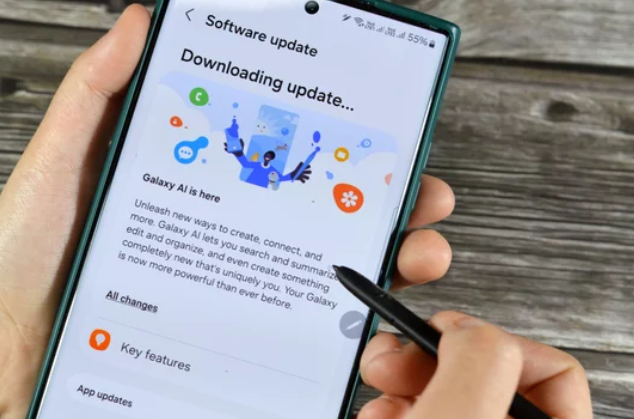
The Samsung Galaxy S26 Ultra comes with high storage capacity, designed to handle large apps, high-resolution photos, 4K videos, and games. Despite this, many users still experience storage problems, including slow performance, “storage full” warnings, and app crashes.
Understanding why these issues occur is the first step toward fixing them. In most cases, storage problems are not caused by faulty hardware but by how storage is managed and used. This guide explains common storage issues on the Samsung Galaxy S26 Ultra and practical solutions to resolve them.
Common Causes of Storage Problems
- Large Media Files – High-resolution photos and videos, especially 4K or 8K recordings, consume significant space.
- Accumulated App Cache – Apps store temporary files that can grow over time, using up gigabytes of storage.
- Unused Apps and Games – Games and apps with large file sizes can quickly fill up storage.
- Downloads and Documents – PDFs, music, and other downloaded files accumulate unnoticed.
- System Updates and OS Files – While necessary, system updates also occupy space over time.
- Hidden Files and Logs – Some apps store hidden files that occupy storage without your knowledge.
1. Check Storage Usage
The first step is to understand what is using your storage.
How to check:
- Open Settings > Battery and Device Care > Storage
- Review categories like Apps, Images, Videos, Audio, and Miscellaneous
This helps you identify which files or apps consume the most space.
2. Delete Unused Apps
Apps you no longer use take up space and can slow down your phone.
How to fix:
- Go to Settings > Apps
- Identify apps you rarely use
- Tap Uninstall
This immediately frees up storage and improves performance.
3. Clear App Cache
Cached data helps apps load faster but can accumulate and take up space.
Steps:
- Open Settings > Apps
- Select an app
- Tap Storage > Clear Cache
Regularly clearing cache prevents unnecessary storage consumption.
4. Move Media to Cloud Storage
High-resolution photos, videos, and music consume large amounts of storage.
Solution:
- Use cloud storage options like Google Drive, OneDrive, or Samsung Cloud
- Upload photos and videos to free up internal storage
Cloud storage keeps your files safe and accessible without occupying your device memory.
5. Delete Duplicate or Old Files
Over time, duplicate photos, videos, or documents accumulate.
Fix:
- Use Samsung’s Device Care > Storage tool to detect duplicate files
- Manually review old downloads and documents
- Delete unnecessary duplicates
This can free significant storage space quickly.
6. Optimize Storage with Device Care
Samsung provides built-in storage optimization tools.
How to use:
- Open Settings > Battery and Device Care > Storage > Clean Now
- The tool removes unnecessary files, temporary data, and residual cache
Using Device Care regularly prevents storage buildup and keeps your phone running smoothly.
7. Manage Offline Media and Downloads
Streaming apps like Spotify, YouTube, or Netflix store offline content.
What to do:
- Delete watched or unneeded offline content
- Review downloads in apps and remove large files
This reduces unnecessary storage usage while keeping essential media.
8. Avoid Excessive Screenshots and Long Video Clips
Frequent screenshots or lengthy 4K/8K video recordings can quickly consume storage.
Tip:
- Transfer media to a PC or cloud storage regularly
- Delete screenshots and short videos you no longer need
Preventing unnecessary accumulation helps maintain free storage.
9. Use External Storage (If Supported)
While the Samsung Galaxy S26 Ultra may not support microSD cards in all models, external drives via USB-C OTG can help manage files.
How it works:
- Connect a compatible USB-C drive
- Move large media files or backups off the internal storage
External storage is ideal for large videos, backups, or documents.
10. Factory Reset as a Last Resort
If storage issues persist due to system clutter or hidden files, a factory reset may be necessary.
Important:
- Backup your data before resetting
- Go to Settings > General Management > Reset > Factory Data Reset
A reset restores your device to a clean state and eliminates hidden storage problems.
Tips to Prevent Future Storage Problems
- Regularly review storage usage
- Backup and delete large media files
- Clear cache monthly
- Uninstall apps you no longer use
- Avoid downloading unnecessary files
Following these habits keeps your Samsung Galaxy S26 Ultra storage optimized and ensures smooth performance.
Final Thoughts
Storage problems on the Samsung Galaxy S26 Ultra are common but manageable. By monitoring storage usage, clearing cache, deleting unused apps, and leveraging cloud storage, you can maintain plenty of free space and prevent performance slowdowns. Regular storage management ensures your smartphone continues to deliver high-speed performance and a seamless user experience. 💾📱
Also Read :