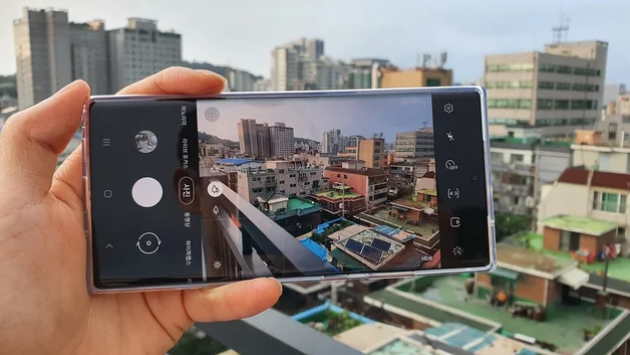
The Samsung Galaxy S26 Ultra features one of the most advanced smartphone cameras available, capable of capturing high-resolution photos and 8K videos. However, some users encounter issues where the camera stops working, freezes, or fails to open. This can be frustrating, especially if you rely on your device for photography or video calls.
Fortunately, most camera problems are software-related or caused by settings, and can be fixed quickly without professional repair. This guide explains why your Samsung Galaxy S26 Ultra camera may not be working and provides step-by-step solutions.
Common Reasons the Camera Stops Working
- Software glitches or bugs – Temporary system errors can prevent the camera from opening.
- Outdated apps or firmware – Older versions of the camera app or system software may have compatibility issues.
- Corrupted cache or app data – Accumulated temporary files can interfere with camera performance.
- Conflicting third-party apps – Camera or social media apps can sometimes interfere with the default camera app.
- Insufficient storage or RAM – Low memory can prevent the camera from launching.
- Hardware issues – While rare, damage to the camera module may require professional repair.
1. Restart Your Phone
A simple restart can resolve many camera issues caused by temporary glitches.
How to fix:
- Press and hold the Power button
- Tap Restart
- Wait for the device to reboot
Restarting clears system memory and often restores normal camera function.
2. Close Background Apps
Too many running apps can prevent the camera from opening.
Fix:
- Open the Recent Apps screen
- Swipe away apps you’re not using
- Test the camera again
Freeing up RAM ensures your camera app has enough resources to function.
3. Clear Camera App Cache and Data
Corrupted temporary files can make the camera freeze or crash.
How to clear cache:
- Open Settings > Apps > Camera
- Tap Storage > Clear Cache
How to clear data (if crashes persist):
- Tap Clear Data or Manage Storage
- Note: This will reset camera settings to default
Clearing cache often fixes camera startup problems.
4. Update System Software and Camera App
Outdated software can cause compatibility issues, preventing the camera from working.
Fix:
- Check for System Updates: Settings > Software Update > Download and Install
- Update the Camera app via the Galaxy Store or Play Store
Keeping software up to date ensures optimal camera performance.
5. Check for Third-Party App Conflicts
Other apps may interfere with the camera, causing it to freeze or fail.
How to test:
- Boot your phone in Safe Mode
- Test the camera functionality
- If it works in Safe Mode, a third-party app is causing the issue
Uninstall recently installed apps that may be conflicting.
6. Free Up Storage Space
Low storage can prevent the camera from launching or saving photos.
Tips:
- Delete unused apps and files
- Clear downloads and media you no longer need
- Keep at least 20% of storage free
Ample storage ensures smooth operation of the camera and other apps.
7. Reset Camera Settings
Incorrect camera settings may prevent proper operation.
How to reset:
- Open the Camera app > Settings > Reset Settings
- Confirm reset
Restoring default settings often resolves app-related issues.
8. Check Permissions
The camera requires permissions to operate properly.
How to check:
- Go to Settings > Apps > Camera > Permissions
- Ensure Camera and Storage permissions are enabled
Without proper permissions, the app may fail to open or function.
9. Factory Reset as a Last Resort
If the camera still doesn’t work after trying all fixes, a factory reset may be necessary.
Important:
- Backup all data first
- Go to Settings > General Management > Reset > Factory Data Reset
A factory reset eliminates persistent software issues affecting the camera.
10. Seek Professional Help
If none of the above solutions work, the issue may be hardware-related.
What to do:
- Contact Samsung Support or visit an authorized service center
- Do not attempt to open the device yourself
Professional inspection ensures proper repair without voiding your warranty.
Tips to Keep Your Camera Working Smoothly
- Keep the lens clean and free of smudges
- Avoid using multiple camera-related apps simultaneously
- Regularly update apps and system software
- Restart your phone occasionally to refresh memory
Final Thoughts
A non-working camera on the Samsung Galaxy S26 Ultra is usually caused by software glitches, conflicting apps, or low storage, rather than hardware failure. By following these fixes—restarting your phone, clearing cache, updating software, checking permissions, and managing storage—you can restore camera functionality and continue capturing high-quality photos and videos. 📸✨
Also Read :