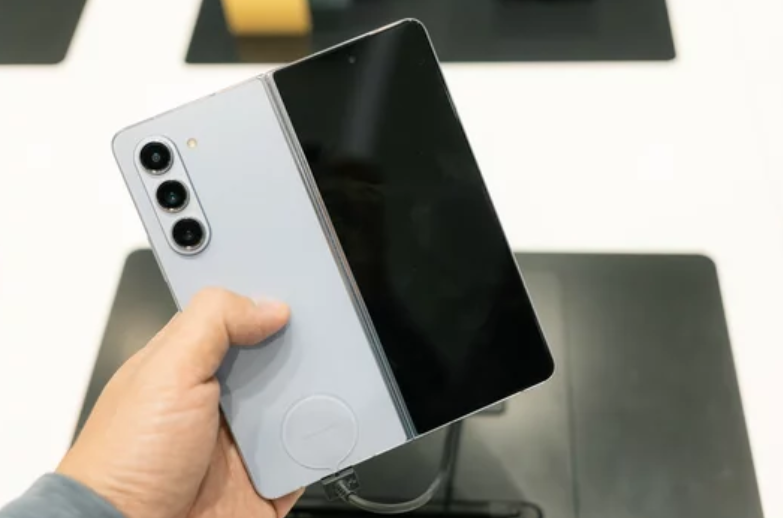
The Samsung Galaxy S26 Ultra is renowned for its advanced camera system, capable of capturing professional-quality photos in a variety of conditions. Yet, some users notice that their photos don’t look as sharp or vibrant as expected. Poor photo quality can result from camera settings, environmental factors, or software issues—not necessarily a hardware problem.
This guide explains why your Samsung Galaxy S26 Ultra photos may look bad and how to fix them for clear, professional-looking images.
Common Reasons Photos Look Bad
- Dirty or smudged lens – Fingerprints, dust, or dirt reduce clarity.
- Poor lighting conditions – Low light or harsh shadows affect exposure and detail.
- Incorrect focus or camera shake – Unsteady hands or misfocused shots create blur.
- Wrong camera settings – Filters, HDR, or resolution settings can impact image quality.
- Software glitches – Outdated camera apps or firmware can reduce photo quality.
- Excessive zoom – Digital zoom decreases clarity and introduces pixelation.
- Conflicting apps – Third-party camera or social media apps may interfere with default camera functionality.
1. Clean the Camera Lens
A dirty lens is the most common reason photos look blurry or hazy.
Fix:
- Use a microfiber cloth to gently wipe the lens
- Avoid rough materials or liquids that could damage the lens
A clean lens ensures sharp, crisp photos every time.
2. Improve Lighting Conditions
Even the best camera struggles in poor lighting.
Tips:
- Take photos in well-lit areas
- Avoid direct sunlight or harsh shadows
- Use Night Mode in low-light environments
Good lighting enhances color, detail, and sharpness.
3. Ensure Proper Focus
Improper focus is a leading cause of blurry or soft photos.
How to fix:
- Tap the screen on the subject before capturing
- Use Pro Mode to manually adjust focus
- Avoid moving the phone while the shutter is open
Proper focus ensures that your subject is sharp and clear.
4. Hold Your Phone Steady
Camera shake often results in blurred images, especially for close-ups or long exposures.
Tips:
- Hold your phone with both hands
- Keep elbows close to your body for stability
- Consider a tripod for extended exposure shots
Steady hands improve overall image quality.
5. Check Camera Settings
Incorrect settings can affect photo clarity and color.
What to check:
- Resolution: Ensure maximum resolution is selected
- HDR: Turn on for better dynamic range
- Filters: Avoid overly aggressive filters that distort colors
Resetting to default settings can restore optimal quality.
6. Update Camera App and System Software
Outdated software can cause glitches and reduce photo quality.
How to update:
- Update the Camera app via Galaxy Store or Play Store
- Check for System Updates in Settings > Software Update
Up-to-date software ensures compatibility and better image processing.
7. Avoid Excessive Digital Zoom
Digital zoom reduces sharpness and introduces pixelation.
Tips:
- Move closer to your subject instead of zooming
- Use optical zoom only if supported
- Crop photos after taking them rather than using digital zoom
This preserves detail and clarity in your images.
8. Clear Camera App Cache
Cached data can sometimes interfere with image processing.
Steps:
- Open Settings > Apps > Camera
- Tap Storage > Clear Cache
Clearing cache often improves camera performance and photo quality.
9. Avoid Conflicting Third-Party Apps
Other camera or social media apps can interfere with default camera processing.
How to fix:
- Close or uninstall third-party camera apps
- Restart your phone
- Test photos using the Samsung Camera app
This ensures the default camera functions correctly.
10. Factory Reset as a Last Resort
If photo quality remains poor despite all fixes, a factory reset may solve software-related issues.
Important:
- Backup your photos and data first
- Go to Settings > General Management > Reset > Factory Data Reset
A reset restores the device to default settings, often fixing persistent camera problems.
Tips for Better Photos on Samsung Galaxy S26 Ultra
- Keep the lens clean at all times
- Use natural or well-distributed light
- Hold the phone steady or use a tripod
- Adjust focus and exposure manually if needed
- Avoid overusing filters or digital zoom
Final Thoughts
Poor photo quality on the Samsung Galaxy S26 Ultra is usually caused by lens issues, focus errors, low light, software settings, or app conflicts. By following these fixes—cleaning the lens, improving lighting, adjusting focus, updating software, and managing settings—you can capture sharp, vibrant, professional-quality photos every time. 📸✨
Also Read :