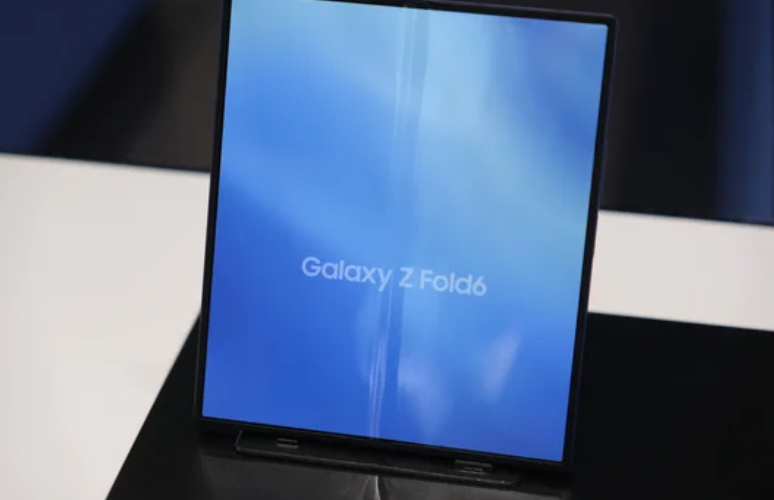
The **Samsung **Samsung Galaxy S26 Ultra is built with advanced smartphone technology, offering a stunning display, lightning-fast performance, and a highly responsive touchscreen. Its high-refresh-rate AMOLED display is designed to deliver smooth navigation, accurate gestures, and a premium user experience. 📱✨
However, like any sophisticated electronic device, users may occasionally encounter technical issues. One common problem is an unresponsive or frozen touchscreen, where taps, swipes, or gestures fail to register.
This issue can be extremely frustrating because the touchscreen is the primary way users interact with their phones. Fortunately, in many cases, the problem is related to software glitches, temporary system errors, or settings conflicts rather than hardware failure.
In this comprehensive guide, we will explore the main causes of touchscreen problems on the Samsung Galaxy S26 Ultra and provide effective solutions to restore normal functionality.
Understanding Touchscreen Problems
A touchscreen may appear unresponsive in several ways, including:
- The screen does not respond to taps or swipes
- Delayed touch response
- Random touches (ghost touch)
- Only certain areas of the screen stop responding
- The screen freezes completely
These symptoms can occur due to software bugs, screen protection accessories, system overload, or hardware damage.
Common Causes of Touchscreen Not Responding
Before trying advanced fixes, it’s important to understand the potential reasons behind the issue.
1. Temporary Software Glitches
Temporary software errors are among the most common reasons for touchscreen problems. Background processes, memory overload, or system conflicts can cause the device to freeze.
Quick Fix
Restart your phone:
- Press and hold the Power + Volume Down buttons.
- Select Restart.
This simple step clears temporary system errors and often restores touchscreen responsiveness.
2. Screen Protector or Dirt on the Display
Sometimes the problem isn’t internal at all. A poor-quality screen protector, moisture, dust, or fingerprints can interfere with touch sensitivity.
What You Should Do
- Remove the screen protector temporarily
- Clean the screen using a soft microfiber cloth
- Ensure the screen is completely dry
Even a thin layer of grease or moisture can reduce touchscreen accuracy.
3. System Overload or Too Many Background Apps
Running too many apps at once can overload system resources, leading to delayed touch responses.
How to Fix It
- Open the Recent Apps menu
- Close unnecessary applications
- Restart the device if it feels slow
Freeing up memory helps restore smooth touchscreen performance.
4. Software Bugs or Outdated System
Operating system bugs can sometimes cause touch input problems. Manufacturers regularly release updates to improve performance and fix system errors.
Check for Software Updates
- Open Settings
- Tap Software Update
- Select Download and Install
Keeping your device updated ensures the latest bug fixes and optimizations are installed.
5. Third-Party App Conflicts
Some apps may interfere with the device’s touchscreen functionality, especially poorly optimized applications.
How to Identify the Problem
Boot your phone into Safe Mode:
- Hold the Power button
- Tap and hold Power Off
- Select Safe Mode
In Safe Mode, only system apps run. If the touchscreen works normally, a third-party app is likely causing the issue.
Solution
Uninstall recently installed apps one by one until the problem disappears.
Advanced Troubleshooting Methods
If the touchscreen still doesn’t respond after trying basic solutions, you can attempt these more advanced fixes.
Reset Touch Sensitivity Settings
The Galaxy S26 Ultra includes display settings that affect touch responsiveness.
Steps:
- Go to Settings
- Tap Display
- Enable Touch Sensitivity
This setting increases screen responsiveness, especially when using screen protectors.
Clear Cache Partition
Cached system files sometimes become corrupted, which may interfere with touch performance.
Steps to Clear Cache
- Turn off the phone
- Press Power + Volume Up
- Enter Recovery Mode
- Select Wipe Cache Partition
- Restart the device
This process removes temporary files without deleting personal data.
Reset All Settings
Resetting system settings can eliminate configuration conflicts without erasing your files.
Steps
- Open Settings
- Tap General Management
- Select Reset
- Choose Reset All Settings
This restores system configurations to default values.
Perform a Factory Reset
If none of the previous solutions work, performing a factory reset may resolve deep software issues.
Important Reminder
Back up your data before proceeding.
Steps:
- Go to Settings
- Tap General Management
- Select Reset
- Tap Factory Data Reset
After resetting the phone, test the touchscreen before installing apps again.
Signs of Hardware Damage
If your touchscreen remains unresponsive after trying all software fixes, the problem may be hardware-related.
Common signs include:
- Cracked or damaged display
- Dead touch zones
- Screen responding randomly
- Phone exposed to water or heavy impact
In these cases, internal components such as the digitizer or display panel may need repair.
When to Seek Professional Repair
Professional assistance is recommended if:
- The touchscreen does not respond at all
- The screen freezes frequently
- Physical damage is visible
- The phone overheats while in use
Authorized technicians can diagnose the issue and replace faulty components safely.
Tips to Prevent Touchscreen Problems
Maintaining your smartphone properly can prevent future touchscreen issues.
Helpful Tips
- Keep the display clean
- Use high-quality screen protectors
- Avoid exposing the phone to water or extreme heat
- Install apps only from trusted sources
- Restart the device regularly
These habits help maintain smooth touchscreen performance over time.
Final Thoughts
The Samsung Galaxy S26 Ultra is designed with an advanced, highly responsive touchscreen, but occasional issues can still occur due to software glitches, background processes, or display accessories.
Fortunately, most touchscreen problems can be resolved through simple troubleshooting steps, such as restarting the device, updating software, removing problematic apps, or resetting system settings.
Only in rare cases is the issue caused by hardware damage. If that happens, seeking professional repair ensures your device returns to optimal condition.
By following the solutions in this guide, you can quickly restore your Galaxy S26 Ultra’s touchscreen and continue enjoying its powerful features without interruption. 📱🚀
Also Read :