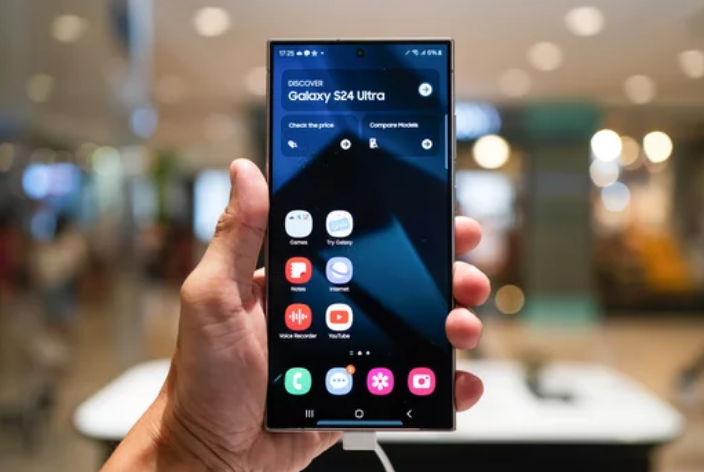
The Samsung Galaxy S26 Ultra stands as one of the most advanced smartphones ever created, combining premium design with powerful hardware and intelligent software. However, even the most sophisticated devices can run into issues—from battery drain and overheating to connectivity glitches and app crashes.
If you’re facing persistent problems, don’t worry. Many of these issues can be resolved quickly with the right expert techniques. In this comprehensive guide, you’ll discover proven tips to troubleshoot and fix Samsung Galaxy S26 Ultra problems effectively—without needing professional repair.
Why Problems Occur on the Galaxy S26 Ultra
Before diving into solutions, it’s important to understand why issues happen in the first place. Common causes include:
- Software bugs or outdated firmware
- Excessive background apps
- Corrupted cache files
- Network instability
- Misconfigured settings
Identifying the root cause is the first step toward a lasting solution.
Restart Your Device Regularly
It may sound simple, but restarting your phone can resolve a wide range of issues.
Why It Works
- Clears temporary system glitches
- Refreshes memory (RAM)
- Stops background processes
Expert Tip
Restart your device at least once every 2–3 days to maintain optimal performance.
Keep Your Software Updated
Software updates often include bug fixes, security patches, and performance improvements.
How to Update
- Go to Settings
- Tap Software Update
- Select Download and Install
Pro Insight
Always install updates over a stable Wi-Fi connection and ensure your battery is above 50%.
Fix Battery Drain Issues
Battery problems are among the most common complaints.
Expert Solutions
- Enable Power Saving Mode
- Turn off Always-On Display
- Reduce screen brightness
- Disable unused features like Bluetooth and GPS
Advanced Tip
Check battery usage:
- Go to Settings > Battery and Device Care > Battery
- Identify apps consuming excessive power and restrict them
Resolve Overheating Problems
Overheating can affect performance and battery health.
Common Causes
- Heavy gaming or multitasking
- High screen brightness
- Charging while using the device
How to Fix
- Close unused apps
- Remove phone case while charging
- Switch to Optimized Performance Mode
- Avoid direct sunlight exposure
Fix Slow Performance and Lag
If your Galaxy S26 Ultra feels sluggish, these expert tips can help.
Speed Boost Techniques
- Clear cache regularly
- Reduce animation scale in Developer Options
- Uninstall unused apps
- Free up storage space
Bonus Tip
Keep at least 20% of your storage free for smoother operation.
Solve App Crashes and Freezing
Apps may crash due to compatibility issues or corrupted data.
Fix Steps
- Update the app via the Play Store
- Clear app cache:
- Go to Settings > Apps
- Select the app
- Tap Storage > Clear Cache
- Reinstall the app if necessary
Fix Wi-Fi and Connectivity Issues
Connectivity problems can disrupt your daily usage.
Troubleshooting Tips
- Toggle Wi-Fi off and on
- Restart your router
- Forget and reconnect to the network
- Reset network settings:
- Go to Settings > General Management > Reset > Reset Network Settings
Improve Mobile Data Performance
Slow mobile data can be frustrating, especially on a premium device.
Solutions
- Enable and disable Airplane Mode
- Check APN settings
- Ensure you have strong signal coverage
- Contact your network provider if issues persist
Fix Bluetooth Pairing Problems
Bluetooth issues can prevent devices from connecting properly.
Steps to Fix
- Turn Bluetooth off and on
- Remove paired devices and reconnect
- Reset network settings if needed
Clear Cache Partition for System Stability
Over time, cached system files can cause glitches.
How to Clear Cache Partition
- Turn off your phone
- Press and hold Volume Up + Power Button
- Enter Recovery Mode
- Select Wipe Cache Partition
- Reboot the device
Expert Insight
This process does not delete personal data but can fix many hidden issues.
Optimize Storage for Better Performance
Low storage can slow down your phone significantly.
Tips
- Delete duplicate files
- Use cloud storage for photos and videos
- Clear downloads and unused media
Fix Camera Issues
Camera problems such as blurry images or crashes can ruin your experience.
Solutions
- Clean the camera lens
- Reset camera settings
- Update the camera app
- Check for software updates
Reset App Preferences
Sometimes, misconfigured app permissions can cause issues.
Steps
- Go to Settings > Apps
- Tap the three-dot menu
- Select Reset App Preferences
Use Safe Mode to Detect Problematic Apps
Safe Mode disables third-party apps temporarily.
How to Enable Safe Mode
- Press and hold the Power button
- Tap and hold Power Off
- Select Safe Mode
Why It Helps
If issues disappear in Safe Mode, a third-party app is likely the cause.
Factory Reset as a Last Resort
If all else fails, a factory reset can restore your phone to its original state.
Important
Back up your data before proceeding.
Steps
- Go to Settings > General Management > Reset
- Tap Factory Data Reset
Prevent Future Problems
Prevention is always better than cure. Follow these expert tips:
- Avoid installing apps from unknown sources
- Keep your phone updated
- Regularly clean storage and cache
- Use official chargers and accessories
Final Thoughts: Master Your Galaxy S26 Ultra Experience
The Samsung Galaxy S26 Ultra is built to deliver exceptional performance, but occasional issues are inevitable. The good news is that most problems can be resolved with simple, expert-level troubleshooting techniques.
By applying the tips in this guide, you can:
- Extend battery life
- Improve speed and responsiveness
- Fix connectivity and app issues
- Enhance overall device stability
Instead of feeling frustrated, take control of your smartphone experience. With the right knowledge and tools, your Galaxy S26 Ultra can perform like new—every single day.
Also Read :