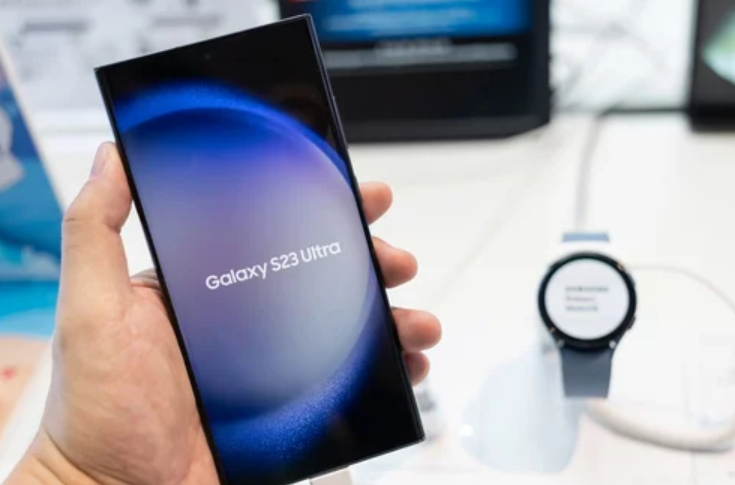
The Samsung Galaxy S26 Ultra is a flagship smartphone engineered for top-tier performance, advanced photography, and seamless multitasking. However, even premium devices can develop issues over time—ranging from battery drain and lag to connectivity failures and app crashes.
Before jumping into fixes, the smartest approach is proper diagnosis. Understanding what’s wrong and why it’s happening allows you to apply the right solution quickly and effectively. This comprehensive diagnostic guide will help you identify, analyze, and resolve Samsung Galaxy S26 Ultra problems like an expert.
Why Diagnostics Matter Before Fixing Issues
Many users rush into factory resets or unnecessary repairs without identifying the root cause. This can waste time and even make issues worse.
Benefits of Proper Diagnosis
- Saves time and effort
- Prevents data loss
- Targets the exact problem
- Avoids unnecessary resets or repairs
Think of diagnostics as a health check-up for your smartphone—it reveals what’s happening beneath the surface.
Step 1: Identify the Type of Problem
Start by categorizing the issue you’re facing. Most Galaxy S26 Ultra problems fall into these key areas:
1. Performance Issues
- Slow response
- Lag or freezing
- Apps taking too long to open
2. Battery Problems
- Fast battery drain
- Phone not charging properly
- Overheating during use or charging
3. Connectivity Issues
- Wi-Fi dropping frequently
- Bluetooth not pairing
- Weak mobile signal
4. Software Glitches
- Random restarts
- System crashes
- Features not working properly
5. Hardware-Related Concerns
- Camera not functioning
- Screen flickering
- Unresponsive touch
Identifying the category helps narrow down possible causes.
Step 2: Check System Health Using Built-in Tools
Samsung provides built-in diagnostic tools that many users overlook.
Use Device Care
- Go to Settings
- Tap Battery and Device Care
- Tap Optimize Now
What It Checks
- Battery usage
- Storage status
- Memory performance
- Background apps
Why It Matters
This tool gives you a quick overview of your phone’s health and highlights problem areas.
Step 3: Analyze Battery Usage
Battery issues often indicate deeper problems.
How to Check
- Go to Settings > Battery and Device Care > Battery
- Tap Usage Since Last Full Charge
What to Look For
- Apps consuming excessive battery
- Unusual background activity
- Sudden spikes in usage
Diagnosis Tip
If one app is draining more than 20–30% of battery, it may be malfunctioning or poorly optimized.
Step 4: Monitor Storage and Memory
Low storage and RAM overload can slow down your device.
Check Storage
- Go to Settings > Battery and Device Care > Storage
Check Memory
- Tap Memory under Device Care
Warning Signs
- Storage above 85% full
- Frequent memory usage spikes
- Apps closing unexpectedly
Fix Insight
Freeing up space and limiting background apps often resolves lag instantly.
Step 5: Test in Safe Mode
Safe Mode helps determine whether third-party apps are causing problems.
How to Enter Safe Mode
- Press and hold the Power button
- Tap and hold Power Off
- Select Safe Mode
How to Diagnose
- Use your phone normally
- Check if the issue persists
Interpretation
- Problem gone: A third-party app is the cause
- Problem remains: Likely a system or hardware issue
Step 6: Check Network Performance
Connectivity issues can be frustrating, but they’re often easy to diagnose.
Wi-Fi Diagnostics
- Test your connection on another device
- Move closer to the router
- Check for interference
Mobile Data Diagnostics
- Ensure signal strength is stable
- Toggle Airplane Mode
- Check APN settings
Bluetooth Testing
- Try pairing with another device
- Remove and reconnect paired devices
Step 7: Inspect App Behavior
Apps are a common source of problems.
Signs of Problematic Apps
- Frequent crashes
- High battery usage
- Freezing or not responding
Diagnostic Actions
- Update the app
- Clear cache and data
- Reinstall if needed
Step 8: Run Samsung Hardware Diagnostics
Samsung devices include a hidden diagnostic menu for hardware testing.
How to Access
- Open the Phone dialer
- Enter: #0#
Tests Available
- Display (screen test)
- Touch sensitivity
- Sensors
- Camera functionality
- Speaker and vibration
Why It’s Useful
This helps confirm whether an issue is hardware-related or software-based.
Step 9: Check for Software Updates
Outdated software can cause unexpected bugs.
How to Check
- Go to Settings > Software Update
- Tap Download and Install
Diagnostic Insight
If your issue started after an update, it may be a temporary bug that will be fixed in the next patch.
Step 10: Review Background Processes
Too many background processes can cause lag and overheating.
How to Check
- Enable Developer Options
- Tap Running Services
What to Look For
- Apps consuming excessive RAM
- Unnecessary services running continuously
Step 11: Clear Cache Partition
System cache corruption can lead to performance issues.
How to Clear
- Turn off your phone
- Press and hold Volume Up + Power Button
- Enter Recovery Mode
- Select Wipe Cache Partition
- Restart the device
Diagnostic Benefit
This step removes temporary system files without affecting personal data.
Step 12: Perform a Controlled Reset (If Needed)
If diagnostics point to deeper system issues, resetting settings can help.
Reset Options
- Reset App Preferences
- Reset Network Settings
- Reset All Settings
When to Use
Only after identifying persistent issues that other fixes haven’t resolved.
Step 13: When It’s a Hardware Problem
If diagnostics reveal hardware issues, such as:
- Dead pixels or screen flickering
- Camera not responding
- Faulty charging port
Next Steps
- Visit an authorized Samsung service center
- Avoid DIY repairs to prevent further damage
Pro Tips for Accurate Diagnosis
- Test one fix at a time to isolate results
- Keep notes of changes and outcomes
- Avoid installing multiple “cleaner” apps—they can worsen issues
- Always back up your data before major troubleshooting
Final Thoughts: Diagnose Smart, Fix Faster
The Samsung Galaxy S26 Ultra is a highly capable device, but even the best technology can face occasional issues. The key to solving problems efficiently lies in proper diagnosis.
By following this step-by-step diagnostic guide, you can:
- Identify the exact cause of issues
- Avoid unnecessary fixes
- Restore optimal performance quickly
- Extend the lifespan of your device
Instead of guessing, approach every issue methodically. With the right diagnostic strategy, you can turn your Galaxy S26 Ultra into a smooth, reliable, and high-performing device once again.
Also Read :