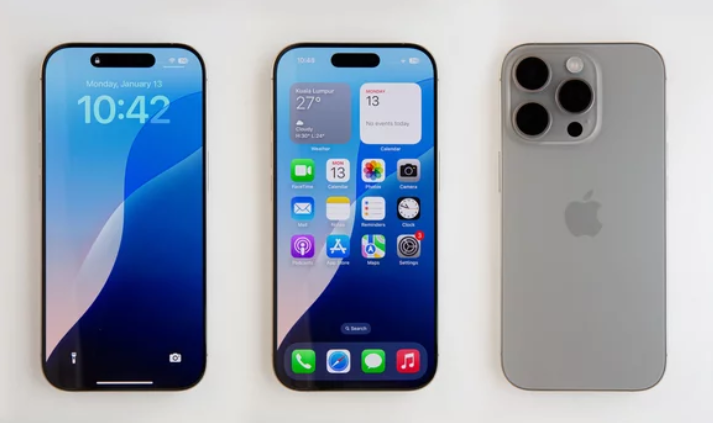
Are you experiencing crackling or distorted sound on your iPhone 17 speaker? Whether you’re listening to music, watching videos, or taking calls, poor audio quality can ruin the experience. Instead of clear, crisp sound, you may hear buzzing, popping, or muffled output.
The good news is that this issue is often fixable without professional repair. In this comprehensive guide, you’ll discover the main causes of iPhone 17 speaker distortion and easy, effective solutions to restore high-quality sound.
Why Is Your iPhone 17 Speaker Crackling or Distorted?
Understanding the root cause helps you fix the issue faster. Speaker problems usually fall into software or hardware categories.
1. Dust and Debris Blocking the Speaker
Over time, dirt, lint, and dust can accumulate in the speaker grills, affecting sound clarity and causing crackling noises.
2. High Volume Distortion
Playing audio at maximum volume can sometimes distort sound, especially if the audio file itself is low quality.
3. Software Bugs or Glitches
System errors or recent iOS updates may interfere with audio output, leading to distorted or crackling sound.
4. Bluetooth or External Device Interference
If your iPhone is connected to a Bluetooth device, sound may become unstable or inconsistent.
5. Faulty Apps or Audio Files
Certain apps or corrupted media files can produce distorted audio.
6. Water or Physical Damage
Exposure to moisture or accidental drops can damage the internal speaker components.
How to Fix iPhone 17 Speaker Crackling or Distorted Sound
Follow these step-by-step solutions to fix the problem and restore clear audio.
1. Clean the Speaker Grills
This is one of the most common and effective fixes.
What to do:
- Use a soft, dry brush to clean the speaker area
- Gently remove dust or debris
- Avoid using water or sharp objects
Even minor blockages can affect sound quality.
2. Lower the Volume
If distortion occurs at high volume:
- Reduce the volume level
- Test audio again
Sometimes the speaker performs best at moderate levels.
3. Restart Your iPhone 17
Restarting clears temporary system issues affecting audio performance.
4. Disconnect Bluetooth Devices
Make sure your audio isn’t being routed through another device.
Steps:
- Turn off Bluetooth
- Play audio through the phone speaker
5. Check Audio in Different Apps
Test sound in:
- Music apps
- YouTube or video apps
- Phone calls
If distortion occurs only in one app, the issue is likely app-related.
6. Update iOS Software
Software updates often fix bugs affecting sound output.
Steps:
- Go to Settings
- Tap General
- Select Software Update
- Install the latest version
7. Remove Phone Case or Cover
Some cases can block or muffle speaker output.
8. Reset All Settings
This helps fix hidden configuration issues.
Steps:
- Go to Settings
- Tap General
- Select Transfer or Reset iPhone
- Tap Reset → Reset All Settings
9. Check for Water Damage
If your iPhone was exposed to moisture:
- Let it dry completely
- Avoid using heat to dry it
- Test audio after drying
10. Perform a Factory Reset (Last Resort)
If nothing else works, a full reset can fix deep software problems.
Important: Back up your data before proceeding.
How to Test Your iPhone 17 Speaker
After applying fixes, confirm the issue is resolved:
- Play music at different volume levels
- Watch videos
- Make a phone call
- Use speakerphone mode
Clear, distortion-free sound means your speaker is working properly.
Tips to Prevent Speaker Problems
Keep your iPhone 17 speaker in top condition with these tips:
- Clean speaker grills regularly
- Avoid using your phone in dusty environments
- Keep volume at safe levels
- Protect your phone from water and drops
- Use high-quality audio files and apps
When Should You Seek Professional Repair?
You should consider professional help if:
- The speaker crackles even at low volume
- Audio is consistently distorted across all apps
- The issue started after water or physical damage
- None of the fixes work
A technician can diagnose internal hardware issues and repair or replace the speaker.
Final Thoughts
The iPhone 17 speaker crackling or distorted sound issue can be annoying, but it’s usually easy to fix. In most cases, simple solutions like cleaning the speaker, restarting your device, or updating iOS can restore clear sound.
If the issue is software-related, resets and updates will resolve it. However, hardware damage may require professional repair.
By following this guide, you can enjoy crystal-clear audio on your iPhone 17—whether you’re listening to music, watching videos, or making calls.
Also Read :
- iPhone 17 Microphone Not Working? Easy Solutions
- How to Fix iPhone 17 SIM Card Not Detected
- iPhone 17 Random Restart Issue: Causes and Solutions