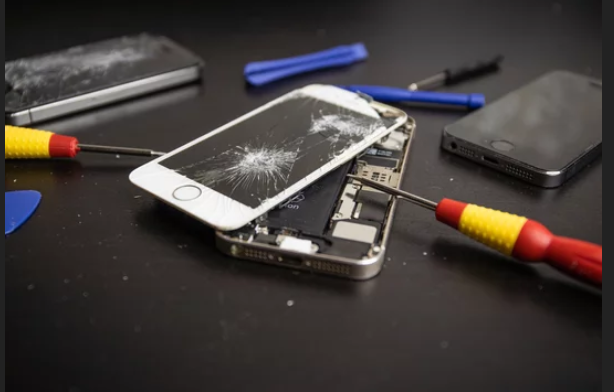
A non-responsive touchscreen can instantly turn your smartphone into a frustrating brick. Whether you’re using an iPhone or a Samsung Galaxy, touch issues can happen unexpectedly—even on devices from top brands like Apple Inc. and Samsung Electronics.
The good news? Most touchscreen problems are temporary and can be fixed quickly without professional help. In this guide, you’ll discover what causes touchscreen issues and proven fixes that actually work.
Why Your Touchscreen Stops Working
Before jumping into solutions, here are the most common causes:
- Software glitches or system bugs
- Dirt, oil, or moisture on the screen
- Faulty or low-quality screen protectors
- Too many background processes
- Physical damage (drops or water exposure)
- Extreme temperatures
1. Restart Your Phone (The First Fix to Try)
Why It Works
A restart clears temporary glitches and refreshes system processes.
How to Do It
- Press and hold the power button
- Tap Restart
- Wait for your phone to reboot
This simple step solves many touchscreen issues instantly.
2. Clean Your Screen Properly
The Problem
Dirt, sweat, or oil can interfere with touch sensitivity.
Quick Fix
- Use a soft microfiber cloth
- Gently wipe the screen
- Avoid using excessive liquid
3. Remove Screen Protector or Case
Why It Matters
Low-quality or damaged screen protectors can block touch input.
Solution
- Remove the screen protector
- Test the screen without it
- Replace with a high-quality protector if needed
4. Check for Moisture or Water Damage
The Issue
Water can disrupt touch sensors and cause erratic behavior.
Fix It Fast
- Dry your phone immediately
- Power it off if wet
- Let it air-dry completely before use
5. Close Background Apps
Why It Helps
Too many running apps can slow your phone and affect responsiveness.
Steps
- Open recent apps
- Close all unnecessary apps
- Restart your phone for better performance
6. Update Your Software
Why Updates Fix Issues
Software updates often include bug fixes for touchscreen problems.
How to Update
- Go to Settings > Software Update
- Install the latest version
7. Adjust Touch Sensitivity Settings (Samsung)
Helpful Feature
Samsung devices allow you to increase touch sensitivity.
Steps
- Go to Settings > Display
- Enable Touch Sensitivity
8. Reset Settings (Without Losing Data)
Why It Works
Incorrect settings can interfere with touchscreen performance.
Solution
- Reset all settings (not factory reset)
- This restores defaults without deleting personal data
9. Boot into Safe Mode (Samsung)
What It Does
Safe Mode disables third-party apps to identify the cause.
How It Helps
If the touchscreen works fine in Safe Mode, a third-party app is likely the problem.
10. Perform a Factory Reset (Last Resort)
When to Use It
If none of the above fixes work.
Steps
- Back up your data
- Reset your phone to factory settings
- Reinstall only essential apps
Signs It Might Be a Hardware Problem
Sometimes the issue isn’t software-related. Watch for:
- Cracked or damaged screen
- Touch working only in certain areas
- No response at all
In such cases, you may need professional repair.
When to Seek Professional Help
Visit an authorized service center if:
- The touchscreen remains unresponsive
- The phone has physical or water damage
- Issues persist after a factory reset
Preventing Touchscreen Issues in the Future
Best Practices
- Use a high-quality screen protector
- Keep your screen clean and dry
- Avoid dropping your phone
- Update software regularly
- Don’t overload your device with apps
Final Thoughts
Touchscreen problems can be annoying, but they’re often easy to fix. Whether you’re using an iPhone or a Samsung Galaxy, these quick solutions can help you restore full functionality in minutes.
Also Read :
- Samsung Galaxy S26 Ultra vs Older Galaxy Phones: Problems & Fixes
- iPhone 17 Battery Draining Fast? Easy Fixes That Work
- Samsung Galaxy S26 Ultra Problems After Update: Easy Fixes