Bluetooth is one of the most useful features on modern smartphones—allowing you to connect wireless earbuds, speakers, smartwatches, and even cars. But when it stops working properly, it can be incredibly frustrating. Whether you’re using an iPhone or a Samsung Galaxy, Bluetooth problems can occur on any device, including those from Apple Inc. and Samsung Electronics.
The good news? Most Bluetooth issues are easy to fix with a few simple steps. In this guide, you’ll learn why Bluetooth problems happen and how to fix them quickly and effectively.
Common Bluetooth Problems
Before troubleshooting, identify the issue you’re facing:
- Bluetooth not turning on
- Devices not pairing
- Frequent disconnections
- Poor audio quality
- Delayed or laggy audio
1. Turn Bluetooth Off and On Again
Why It Works
This simple step refreshes the Bluetooth connection and clears minor glitches.
What to Do
- Go to Settings > Bluetooth
- Turn it off, wait 10 seconds, then turn it back on
2. Restart Your Phone and Device
Quick Fix for Many Issues
Restarting both your smartphone and the Bluetooth device can resolve temporary bugs.
Steps
- Power off your phone
- Restart your Bluetooth accessory (earbuds, speaker, etc.)
- Reconnect after reboot
3. Forget and Re-Pair the Device
Why This Helps
Old or corrupted pairing data can cause connection issues.
How to Fix
- Go to Bluetooth settings
- Tap the connected device
- Select Forget or Unpair
- Pair the device again
4. Check Device Compatibility
The Problem
Not all devices are fully compatible, especially older accessories with newer phones.
Solution
- Ensure both devices support the same Bluetooth version
- Check manufacturer specifications
5. Keep Devices Within Range
Why It Matters
Bluetooth typically works within a range of about 10 meters (33 feet).
Fix
- Keep devices close together
- Remove obstacles like walls or metal objects
6. Turn Off Interfering Connections
The Issue
Wi-Fi networks and other Bluetooth devices can interfere with the connection.
What to Do
- Turn off unused Bluetooth devices nearby
- Switch Wi-Fi bands if needed
- Disconnect other paired devices
7. Update Your Software
Why Updates Fix Problems
Software updates often include Bluetooth bug fixes and performance improvements.
Steps
- Go to Settings > Software Update
- Install the latest updates
8. Check App Permissions
The Hidden Cause
Some apps require Bluetooth permissions to function properly.
Solution
- Go to Settings > Apps > Permissions
- Enable Bluetooth access for relevant apps
9. Reset Network Settings
When to Use This
If Bluetooth issues persist despite other fixes.
How to Reset
- iPhone: Settings > General > Transfer or Reset > Reset Network Settings
- Samsung: Settings > General Management > Reset > Reset Network Settings
10. Charge Your Devices
Often Overlooked
Low battery levels can cause unstable Bluetooth connections.
Fix
- Fully charge both your phone and Bluetooth accessory
Advanced Troubleshooting Tips
Boot into Safe Mode (Samsung)
Safe Mode helps identify if third-party apps are causing Bluetooth issues.
Check for Firmware Updates on Accessories
Some Bluetooth devices (like earbuds) have firmware updates that improve connectivity.
Factory Reset (Last Resort)
If nothing works:
- Back up your data
- Perform a factory reset
- Reconnect your devices
When to Seek Professional Help
You may need expert assistance if:
- Bluetooth won’t turn on at all
- Devices fail to detect any connections
- Issues persist after a factory reset
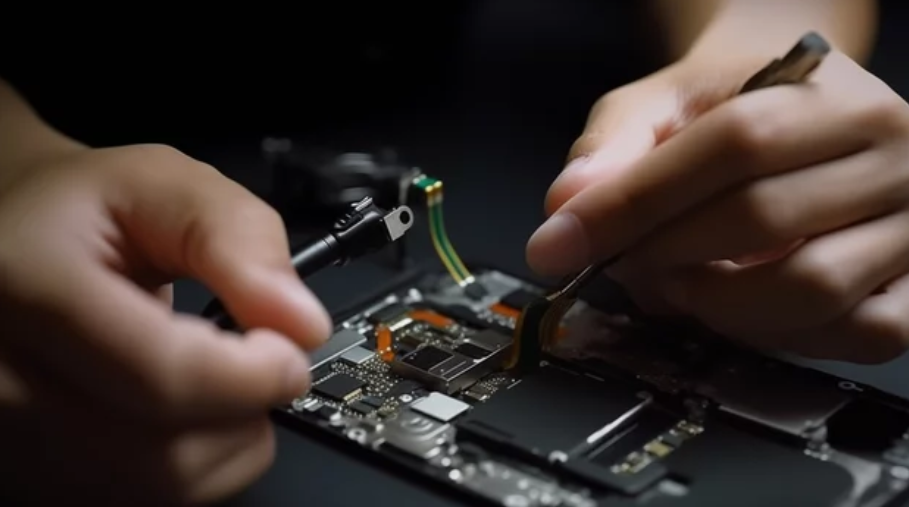
This could indicate a hardware problem.
Tips to Prevent Bluetooth Issues
Best Practices
- Keep your phone updated
- Avoid connecting too many devices at once
- Regularly clear old paired devices
- Use high-quality, compatible accessories
Final Thoughts
Bluetooth connectivity issues can be annoying, but they are usually easy to fix. Whether you’re using an iPhone or a Samsung Galaxy, following these steps will help you restore a stable connection quickly.
Devices from Apple Inc. and Samsung Electronics are designed for seamless connectivity—so with proper troubleshooting, you can enjoy uninterrupted wireless performance.
Also Read :