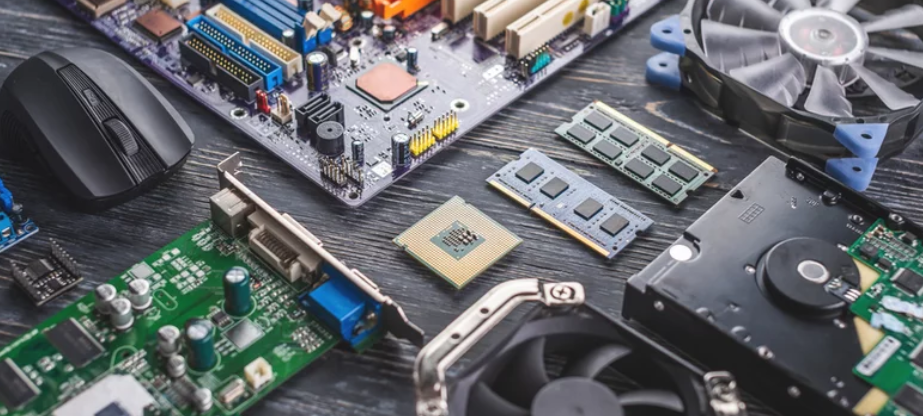
Modern computers are powerful, fast, and reliable—but they are not immune to hardware issues. From overheating laptops to unresponsive keyboards, computer hardware problems can disrupt productivity, cause data loss, and lead to costly repairs if ignored. Understanding the most common computer hardware problems and knowing how to fix them can save you time, money, and frustration.
This in-depth guide explains the most frequent PC and laptop hardware issues, their causes, and step-by-step solutions. Whether you are a home user, student, IT professional, or business owner, this article will help you diagnose and resolve hardware problems effectively.
What Are Computer Hardware Problems?
Computer hardware problems occur when physical components of a computer system fail, degrade, or malfunction. These components include the motherboard, hard drive, RAM, power supply, CPU, GPU, keyboard, mouse, monitor, and internal cooling systems.
Unlike software issues, hardware problems often present physical symptoms such as unusual noises, overheating, failure to power on, or devices not being detected.
1. Computer Not Powering On
Common Causes
- Faulty power supply unit (PSU)
- Loose or damaged power cable
- Dead battery (laptops)
- Motherboard failure
- Power surge damage
How to Fix It
- Check the power cable and wall outlet
- Test with a different power cable or adapter
- Remove external devices and try again
- For desktops, test or replace the PSU
- For laptops, remove the battery and power directly
- If no signs of power appear, consult a technician for motherboard inspection
SEO Tip: Computer won’t turn on fix, PC power failure troubleshooting
2. Overheating and Sudden Shutdowns
Symptoms
- System shuts down randomly
- Fans running loudly
- Laptop feels extremely hot
- Performance throttling
Causes
- Dust buildup in fans and vents
- Faulty cooling fan
- Dried thermal paste
- Blocked airflow
- Overclocking issues
Solutions
- Clean internal fans and vents using compressed air
- Replace faulty cooling fans
- Reapply thermal paste to CPU
- Ensure proper ventilation
- Use a cooling pad for laptops
Overheating is one of the most dangerous hardware issues and can permanently damage internal components if ignored.
3. Slow Computer Performance Due to Hardware Issues
Hardware-Related Causes
- Insufficient RAM
- Failing hard drive
- Overheating CPU
- Old or fragmented HDD
How to Improve Performance
- Upgrade RAM for multitasking
- Replace HDD with SSD for faster boot times
- Monitor disk health using SMART tools
- Clean dust to improve thermal performance
Hardware upgrades often provide a bigger performance boost than software tweaks.
4. Hard Drive Failure and Data Loss
Warning Signs
- Clicking or grinding noises
- Frequent system freezes
- Files disappearing or becoming corrupted
- Slow boot times
- Disk read/write errors
Fixes and Prevention
- Back up data immediately
- Run disk diagnostics
- Replace failing HDD or SSD
- Avoid physical shocks
- Use surge protectors
Hard drive failure is one of the most critical computer hardware problems due to the risk of permanent data loss.
5. Blue Screen of Death (BSOD)
Hardware-Related Causes
- Faulty RAM
- Overheating CPU
- Failing hard drive
- Incompatible hardware
- Power supply issues
Troubleshooting Steps
- Test RAM using memory diagnostic tools
- Check CPU temperatures
- Reseat internal components
- Update BIOS if necessary
- Replace defective hardware
While BSODs are often linked to software, hardware faults are a major underlying cause.
6. Monitor Display Problems
Common Issues
- Blank screen
- Flickering display
- Distorted colors
- Lines on the screen
Causes
- Loose display cable
- Faulty GPU
- Damaged monitor
- Incorrect resolution settings
- Overheating graphics card
How to Fix Display Issues
- Check HDMI, VGA, or DisplayPort cables
- Test with another monitor
- Update graphics drivers
- Clean GPU fans
- Replace defective graphics card or monitor
7. Keyboard and Mouse Not Working
Possible Reasons
- Loose USB connection
- Driver issues
- Hardware wear and tear
- Liquid damage
- Dead batteries (wireless devices)
Solutions
- Try a different USB port
- Replace batteries
- Test on another computer
- Clean keyboard keys carefully
- Replace damaged peripherals
Peripheral hardware problems are common and usually inexpensive to fix.
8. USB Ports Not Recognizing Devices
Causes
- Faulty USB port
- Power surge damage
- Corrupted drivers
- Motherboard issues
Fixes
- Test the device on another port
- Restart the computer
- Inspect ports for physical damage
- Reset BIOS USB settings
- Replace damaged ports or use USB expansion cards
9. RAM Problems and Memory Errors
Symptoms
- Frequent crashes
- System freezes
- Failure to boot
- Random restarts
Troubleshooting RAM Issues
- Reseat RAM modules
- Clean RAM slots
- Test one stick at a time
- Replace faulty RAM
- Ensure compatibility with motherboard
Faulty memory is a common cause of unstable systems.
10. No Sound or Audio Hardware Issues
Possible Causes
- Faulty speakers or headphones
- Disabled sound card
- Loose audio cables
- Motherboard audio failure
How to Fix Audio Problems
- Check audio connections
- Test with different speakers
- Enable audio device in BIOS
- Update or reinstall sound drivers
- Use external USB sound card if onboard audio fails
11. Motherboard Failure
Warning Signs
- Computer won’t start
- Random shutdowns
- Burnt smell or visible damage
- USB ports not working
- No display output
What You Can Do
- Inspect for swollen capacitors
- Check for burn marks
- Replace CMOS battery
- If confirmed faulty, replace the motherboard
Motherboard issues are complex and often require professional repair.
12. Laptop Battery Problems
Common Symptoms
- Battery not charging
- Short battery life
- Laptop shuts down when unplugged
Solutions
- Calibrate the battery
- Replace old batteries
- Use original chargers
- Avoid overheating
- Update BIOS if needed
Laptop batteries degrade over time and are considered consumable components.
13. Graphics Card Problems
Signs of GPU Failure
- Artifacts on screen
- Driver crashes
- Black screen during gaming
- Overheating
Fixes
- Clean GPU fans
- Reseat the graphics card
- Update drivers
- Improve case airflow
- Replace failing GPU
Graphics hardware issues are common in gaming and high-performance systems.
Preventing Computer Hardware Problems
Best Practices
- Keep systems clean and dust-free
- Use surge protectors
- Monitor temperatures
- Perform regular backups
- Shut down systems properly
- Avoid liquid exposure
Preventive maintenance significantly extends hardware lifespan.
When to Seek Professional Help
Some hardware problems require specialized tools and expertise. Seek professional assistance if:
- The motherboard is damaged
- Data recovery is needed
- Power-related issues persist
- Laptop internal repairs are required
Attempting complex repairs without experience can worsen the damage.
Final Thoughts: Mastering Computer Hardware Troubleshooting
Understanding common computer hardware problems and how to fix them empowers users to maintain reliable, high-performing systems. Many issues—such as overheating, RAM errors, and peripheral failures—can be resolved with basic troubleshooting and preventive care.
By acting early, upgrading wisely, and following proper maintenance practices, you can avoid costly repairs and extend the life of your computer hardware.
Whether you’re fixing a slow PC, diagnosing hardware failure, or preventing future problems, this guide equips you with practical, proven solutions to keep your computer running smoothly.
Also Read :