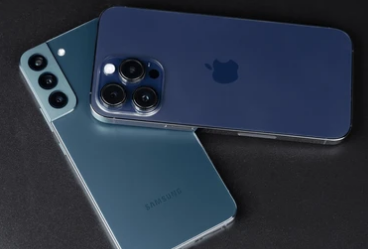
Wi-Fi has become a lifeline for smartphone users—whether for browsing, streaming, working remotely, or staying connected on social media. So, when your phone suddenly won’t connect to Wi-Fi, it can feel like everything grinds to a halt. While many Wi-Fi issues are caused by simple software glitches, others are more serious and may point to hardware malfunctions.
This complete guide will help you identify, troubleshoot, and fix Wi-Fi hardware problems on smartphones, including both iPhone and Samsung devices. We’ll explore symptoms of hardware failure, step-by-step solutions, and how to know when it’s time to seek professional repair or consider a replacement.
What Are Wi-Fi Hardware Problems?
Wi-Fi hardware issues occur when the internal components responsible for wireless connectivity—such as the Wi-Fi chip, antenna, or circuit board—fail to function properly. These issues are different from software bugs or signal interference and often require more than a simple restart or setting reset.
Common Causes of Hardware-Related Wi-Fi Problems:
- Physical impact (drops, bumps)
- Water or moisture damage
- Manufacturing defects
- Aging internal components
- Heat damage from overuse or poor ventilation
- Use of incompatible or faulty charging equipment
Symptoms of a Wi-Fi Hardware Issue on Your Smartphone
Before you attempt a fix, you need to identify whether the issue is hardware-related. Here are signs that point to a potential hardware problem:
- Wi-Fi toggle is greyed out or missing in settings
- Phone cannot detect any Wi-Fi networks
- Wi-Fi connects but immediately disconnects
- Wi-Fi only works when standing very close to the router
- No improvement after multiple software resets
- Bluetooth issues appearing alongside Wi-Fi problems (these often share hardware components)
- Other devices can connect to the same Wi-Fi network without issue
If you’re seeing any combination of these, there’s a good chance your phone is facing a hardware malfunction.
Initial Troubleshooting: Eliminate Software-Related Causes
Before diving into hardware repairs, rule out all software and settings issues. Many Wi-Fi issues can be fixed with these quick steps.
1. Restart Your Phone
It might sound basic, but restarting your device can reset temporary software glitches affecting Wi-Fi performance.
- iPhone: Press and hold the side button and volume button, then slide to power off.
- Samsung: Hold the power button and tap “Restart.”
2. Toggle Airplane Mode
Airplane Mode disables all wireless connections. Turning it off and on can refresh your Wi-Fi connection.
- Go to Settings or use the Quick Access Panel.
- Enable Airplane Mode for 10 seconds, then disable it.
3. Forget and Reconnect to Wi-Fi Network
Sometimes saved networks become corrupted or misconfigured.
- Go to Settings > Wi-Fi.
- Tap the network name > Forget.
- Reconnect by re-entering the Wi-Fi password.
4. Reset Network Settings
This will clear all saved Wi-Fi, VPN, and cellular settings—bringing them back to factory defaults.
- iPhone:
Go to Settings > General > Transfer or Reset iPhone > Reset > Reset Network Settings. - Samsung:
Go to Settings > General Management > Reset > Reset Network Settings.
⚠️ This does not delete your data, but will erase saved Wi-Fi networks and passwords.
5. Update Your Phone’s Operating System
Manufacturers often fix bugs and connectivity issues via software updates.
- iPhone:
Go to Settings > General > Software Update. - Samsung:
Go to Settings > Software Update > Download and Install.
Fixing Wi-Fi Hardware Issues on iPhone
If your iPhone still isn’t connecting to Wi-Fi after software fixes, follow these steps to dig deeper into potential hardware problems.
1. Check for Physical Damage
Inspect your iPhone for cracks, dents, or signs of water damage. Even minor impacts can dislodge the Wi-Fi antenna or damage connectors.
Signs of damage:
- Cracks near the top or back of the phone
- No sound or connectivity issues with Bluetooth as well
- Phone got wet or exposed to moisture recently
2. Use Apple Diagnostics
If your iPhone is still under warranty, book a Genius Bar appointment or contact Apple Support. They can remotely run a hardware diagnostic to check the Wi-Fi module.
3. Perform a DFU Restore
A DFU (Device Firmware Update) restore reinstalls firmware and software at a deeper level than standard resets.
Steps:
- Connect iPhone to a computer with Finder or iTunes.
- Enter DFU Mode (steps vary by model).
- Select Restore iPhone.
⚠️ This will erase all data. Back up your device first.
4. Visit an Authorized Apple Repair Center
If the issue remains after a DFU restore and diagnostic tests indicate a hardware problem, professional repair is needed.
Common repairs may include:
- Wi-Fi antenna replacement
- Logic board repair
- Complete device replacement (if covered under warranty or AppleCare)
Fixing Wi-Fi Hardware Issues on Samsung Smartphones
Samsung phones, like the Galaxy series, can also suffer from hardware-based Wi-Fi issues. Here’s how to identify and resolve them.
1. Run a Diagnostic in Samsung Members App
Samsung offers built-in hardware testing through the Samsung Members app.
- Open the Samsung Members app.
- Go to Support > Diagnostics > Wi-Fi.
- Follow on-screen instructions to test Wi-Fi functionality.
If the test fails, you may have a hardware defect.
2. Boot into Safe Mode
This disables third-party apps and helps determine if the issue is software-related.
Steps:
- Hold the Power button.
- Tap and hold Power Off > Select Safe Mode.
- Try using Wi-Fi in Safe Mode.
If Wi-Fi works here, an app is causing interference. Uninstall recently downloaded apps one by one to find the culprit.
3. Factory Reset (Last Resort Before Repair)
If Safe Mode didn’t help and diagnostics show no issues, perform a factory reset.
- Go to Settings > General Management > Reset > Factory Data Reset.
⚠️ This will erase all data. Make sure to back up your phone.
4. Inspect for Hardware Damage
Signs of physical damage on Samsung devices include:
- Wi-Fi only working in close proximity to the router
- Random disconnects with no other devices affected
- Moisture indicators in the SIM or USB port
5. Visit a Samsung Service Center
If diagnostics indicate a hardware fault—or all software solutions fail—visit an authorized Samsung service center.
Typical repairs may include:
- Replacing Wi-Fi antenna
- Logic board repair
- Full unit replacement if under warranty
When to Replace Instead of Repair
Sometimes, it makes more sense to upgrade your phone than to repair it—especially if Wi-Fi hardware damage is part of a larger issue.
Consider replacing your phone if:
- It’s more than 3–4 years old
- Repair costs exceed 50% of the phone’s value
- The device has multiple hardware issues
- You’re out of warranty or don’t have insurance coverage
Newer devices come with stronger Wi-Fi chips, better antennas, and longer software support, making them a smarter long-term investment.
Tips to Prevent Future Wi-Fi Hardware Failures
You can reduce the risk of Wi-Fi issues by taking care of your smartphone and avoiding common hazards.
✅ Best Practices:
- Use protective cases to guard against drops and shocks.
- Avoid moisture and heat exposure—keep your phone away from water and direct sunlight.
- Clean ports regularly to prevent dust buildup that can affect internal circuits.
- Use high-quality chargers—cheap or damaged cables can harm internal components over time.
- Update software regularly to benefit from performance and stability improvements.
Conclusion: Stay Connected with Reliable Fixes
Wi-Fi hardware problems on smartphones can be frustrating, but they’re often manageable once you know the signs and steps to take. Whether you use an iPhone or a Samsung device, this guide helps you identify hardware issues, troubleshoot effectively, and find the best repair solutions.
When in doubt, don’t hesitate to consult with your device manufacturer’s support team or a certified technician. Staying proactive can save your phone—and your patience.
Also Read :