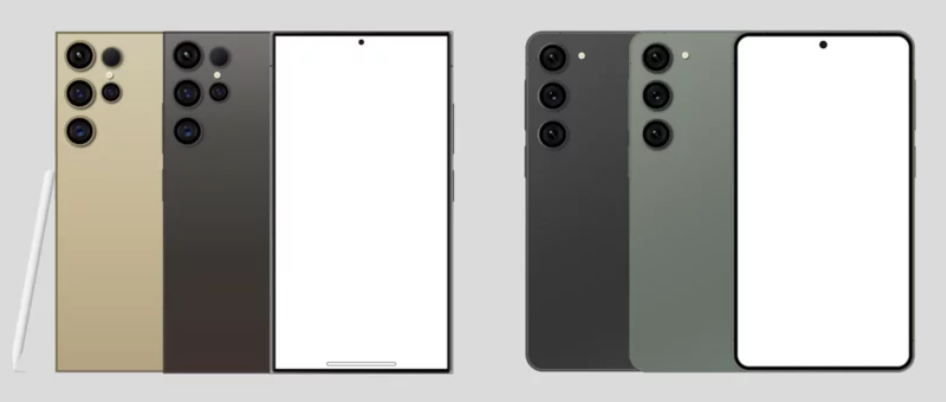
The Samsung Galaxy S26 Ultra is a powerhouse smartphone packed with cutting-edge technology, premium hardware, and advanced software features. However, like any high-performance device, it can sometimes experience issues such as lag, battery drain, overheating, connectivity problems, or app crashes.
What many users don’t realize is that a large number of these problems can be resolved by tweaking hidden settings buried deep within the device. These lesser-known options can dramatically improve performance, extend battery life, and enhance overall usability.
In this comprehensive guide, we’ll explore the most effective hidden settings to fix Samsung Galaxy S26 Ultra issues and help you get the best out of your device.
Why Hidden Settings Matter on the Galaxy S26 Ultra
Samsung’s One UI is feature-rich, but many powerful tools are tucked away in developer menus or advanced settings. These hidden features are designed for optimization, troubleshooting, and customization.
By adjusting them correctly, you can:
- Boost system speed
- Fix app crashes and freezing
- Improve battery efficiency
- Enhance network performance
- Reduce overheating
Let’s dive into the most impactful hidden settings you should enable or adjust.Enable Developer Options for Advanced Fixes
One of the most powerful tools available is Developer Options, which unlocks advanced controls not accessible by default.
How to Enable Developer Options
- Go to Settings
- Tap About Phone
- Select Software Information
- Tap Build Number seven times
- Enter your PIN/password if prompted
Once activated, Developer Options will appear in your settings menu.
Reduce Animation Scale for Faster Performance
If your Galaxy S26 Ultra feels slow or sluggish, reducing animation speeds can make a noticeable difference.
Steps to Adjust Animation Scale
- Open Developer Options
- Locate:
- Window Animation Scale
- Transition Animation Scale
- Animator Duration Scale
- Set each to 0.5x or turn them Off
Benefits
- Faster app launching
- Smoother navigation
- Reduced system lag
Limit Background Processes to Prevent Lag
Too many apps running in the background can slow down your device and drain battery life.
How to Limit Background Apps
- Go to Developer Options
- Tap Background Process Limit
- Choose At most 3–4 processes
Why It Works
This reduces system load and frees up RAM, improving responsiveness and preventing overheating.
Turn Off Auto Sync to Save Battery
Auto-sync constantly updates apps in the background, consuming battery and data.
How to Disable Auto Sync
- Go to Settings
- Tap Accounts and Backup
- Select Manage Accounts
- Turn off Auto Sync Data
When to Use
Disable it if you’re experiencing fast battery drain or overheating.
Enable Adaptive Battery for Smart Power Management
Adaptive Battery uses AI to prioritize power for frequently used apps.
Steps to Enable
- Go to Settings
- Tap Battery and Device Care
- Select Battery
- Enable Adaptive Battery
Benefits
- Extends battery life
- Reduces background activity
- Improves long-term performance
Force Dark Mode to Reduce Power Consumption
Dark Mode isn’t just for aesthetics—it can significantly reduce battery usage, especially on AMOLED displays.
How to Enable
- Go to Settings
- Tap Display
- Turn on Dark Mode
Extra Tip
Enable “Apply to all apps” for maximum effectDisable Unused System Apps (Bloatware Control)
Pre-installed apps can consume resources even when not in use.
How to Disable Apps
- Go to Settings
- Tap Apps
- Select unwanted apps
- Tap Disable
Impact
- Frees up storage
- Reduces RAM usage
- Improves system speed
Adjust Motion Smoothness for Better Battery Life
The S26 Ultra likely supports high refresh rates (120Hz or higher), which can drain battery quickly.
Steps to Adjust
- Go to Settings
- Tap Display
- Select Motion Smoothness
- Switch to Standard (60Hz)
When to Use
Use this mode when you need longer battery life rather than ultra-smooth visuals.Clear Cache Partition to Fix System Glitches
Cache files can become corrupted over time, leading to performance issues.
How to Clear Cache Partition
- Turn off your phone
- Press and hold Volume Up + Power Button
- Enter Recovery Mode
- Select Wipe Cache Partition
- Reboot device
Benefits
- Fixes random crashes
- Improves system stability
- Clears temporary glitches
Enable Wi-Fi Safe Mode for Stable Connectivity
If you experience Wi-Fi drops or slow internet, hidden Wi-Fi settings can help.
Steps
- Go to Settings
- Tap Connections
- Select Wi-Fi
- Tap Advanced Settings
- Enable Wi-Fi Safe Mode
Result
- More stable connections
- Reduced interference issues
Turn Off Nearby Device Scanning
This feature constantly searches for nearby devices, which can drain battery.
How to Disable
- Go to Settings
- Tap Connections
- Select More Connection Settings
- Turn off Nearby Device Scanning
Use Data Saver Mode to Reduce Background Data
If apps consume too much data and battery, Data Saver can help.
Steps to Enable
- Go to Settings
- Tap Connections
- Select Data Usage
- Turn on Data Saver
Optimize Device Using Built-in Device Care
Samsung’s Device Care tool provides a quick way to optimize your phone.
How to Use
- Go to Settings
- Tap Battery and Device Care
- Tap Optimize Now
What It Does
- Closes background apps
- Clears memory
- Scans for issues
Enable RAM Plus for Better Multitasking
RAM Plus uses internal storage as virtual RAM.
Steps
- Go to Settings
- Tap Battery and Device Care
- Select Memory
- Tap RAM Plus
- Increase the RAM size
Benefits
- Smoother multitasking
- Reduced app crashes
Turn Off Usage Diagnostics for Privacy and Performance
Usage data collection can run in the background and affect performance.
How to Disable
- Go to Settings
- Tap Privacy
- Select Customization Service
- Turn it off
Fix Overheating by Adjusting Performance Mode
Performance settings can impact heat generation.
Steps
- Go to Settings
- Tap Battery and Device Care
- Select Battery
- Tap Performance Mode
- Choose Optimized or Light
Result
- Lower device temperature
- Improved battery efficiency
Keep Software Updated for Bug Fixes
Hidden issues are often resolved through updates.
How to Check
- Go to Settings
- Tap Software Update
- Select Download and Install
When to Reset Settings (Last Resort)
If problems persist, resetting settings can help without deleting data.
Steps
- Go to Settings
- Tap General Management
- Select Reset
- Tap Reset All Settings
Final Thoughts: Unlock the Full Potential of Your Galaxy S26 Ultra
The Samsung Galaxy S26 Ultra is designed to deliver exceptional performance, but unlocking its full potential requires more than just basic usage. By exploring and adjusting these hidden settings, you can fix common issues, enhance speed, and significantly improve battery life.
Instead of rushing to a factory reset or repair center, try these advanced tweaks first. In most cases, they can resolve problems quickly and effectively—saving you time, effort, and frustration.
Whether you’re dealing with lag, overheating, or battery drain, these hidden settings give you the control needed to optimize your smartphone like a pro.
Also Read :