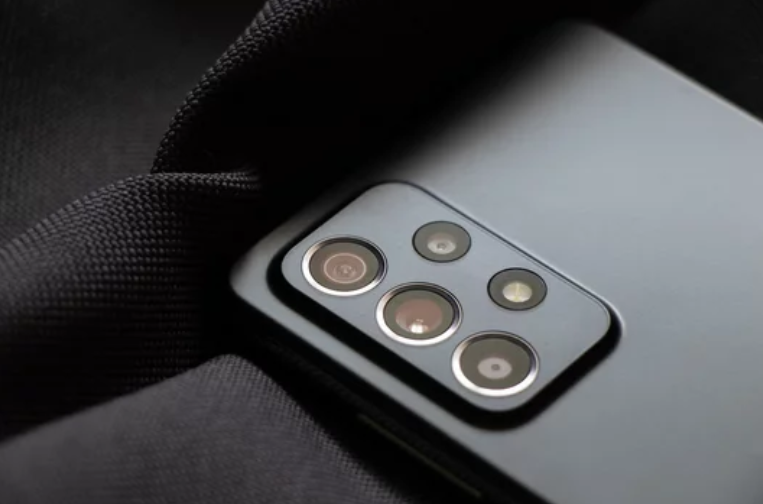
The Samsung Galaxy S26 Ultra boasts one of the most advanced smartphone cameras on the market, capable of capturing stunning photos and high-resolution videos. However, many users occasionally experience blurry images or videos, which can be frustrating when trying to capture special moments.
Blurry photos are usually caused by software settings, lens issues, or user handling rather than hardware failure. This guide explains why your Samsung Galaxy S26 Ultra camera may be blurry and how to fix it effectively.
Common Causes of Blurry Photos
Understanding why images appear blurry is the first step in fixing the issue. Common causes include:
- Dirty or smudged camera lens
- Incorrect focus settings
- Camera shake during capture
- Low-light conditions
- Software glitches or outdated camera app
- Conflicting third-party camera apps
Once you identify the cause, applying the right fix becomes much easier.
1. Clean the Camera Lens
A dirty lens is the most common reason for blurry photos.
How to fix:
- Use a soft, microfiber cloth to gently wipe the lens
- Avoid using rough materials or excessive pressure
Keeping the lens clean ensures sharp and clear images.
2. Check Camera Focus
Improper focus often results in blurred images, especially for close-up or detailed shots.
Tips:
- Tap the screen on the subject before taking a photo
- Use Auto Focus or Pro Mode for manual focus adjustments
- Avoid touching the lens during capture
Proper focus ensures sharp, detailed photos every time.
3. Hold the Phone Steady
Camera shake is a major cause of blurry images, especially in low-light conditions.
Fix:
- Hold your phone with both hands
- Keep elbows close to your body for stability
- Consider using a tripod or stabilizer for longer exposures
Steady hands prevent motion blur and improve image clarity.
4. Use Adequate Lighting
Low-light conditions force the camera to use slower shutter speeds, increasing the risk of blur.
Tips:
- Take photos in well-lit environments
- Enable Night Mode for low-light shots
- Avoid digital zoom, which can amplify blur
Good lighting allows the camera to capture sharper, more detailed images.
5. Update Camera App and System Software
Software bugs can affect camera performance and focus.
How to fix:
- Update the Samsung Camera app via the Play Store or Galaxy Store
- Check for System Updates in Settings > Software Update
Keeping software updated ensures optimal camera functionality.
6. Clear Camera App Cache
Corrupted cache files can cause glitches like blurry images or slow focusing.
How to clear cache:
- Open Settings > Apps > Camera
- Tap Storage > Clear Cache
This often resolves temporary camera issues.
7. Avoid Conflicting Third-Party Apps
Some camera apps or social media apps can interfere with the main camera.
Fix:
- Close or uninstall third-party camera apps
- Restart the device
- Test the default Samsung Camera app
Eliminating conflicts helps maintain consistent image quality.
8. Reset Camera Settings
Incorrect camera settings can reduce image quality.
How to reset:
- Open the Camera app
- Go to Settings > Reset Settings
- Confirm reset
Restoring default settings ensures optimal camera performance.
9. Test the Camera in Safe Mode
Safe Mode disables third-party apps temporarily, helping you determine if an app is causing blurry photos.
How to enter Safe Mode:
- Press and hold the Power button
- Tap and hold Power Off
- Select Safe Mode
- Test the camera
If photos are clear in Safe Mode, a third-party app may be the culprit.
10. Factory Reset as a Last Resort
Persistent blurry images despite all fixes may require a factory reset.
Important:
- Backup all photos and data first
- Go to Settings > General Management > Reset > Factory Data Reset
A reset restores your phone to its original settings, eliminating software-related camera issues.
Tips for Capturing Sharper Photos
- Keep the lens clean
- Use proper lighting
- Hold your phone steady
- Avoid excessive zoom
- Update apps and software regularly
Final Thoughts
Blurry photos on the Samsung Galaxy S26 Ultra are usually caused by lens smudges, focus issues, camera shake, or software glitches. By following the steps above—cleaning the lens, ensuring focus, holding the phone steady, updating software, and resetting camera settings—you can capture sharp, professional-quality photos every time. 📸✨
Also Read :