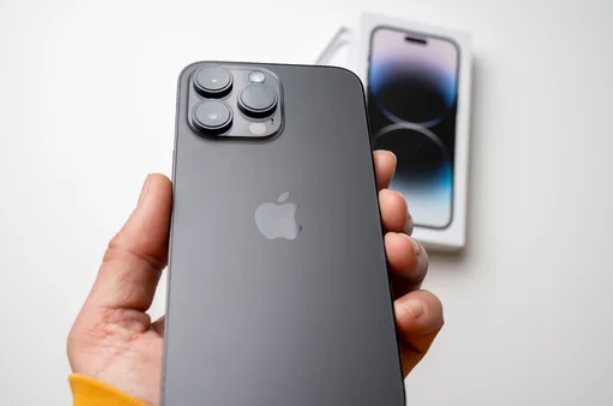
Is your iPhone 17 GPS not working properly? Whether your location is inaccurate, maps won’t load, or navigation apps fail to track your movement, GPS issues can be extremely frustrating—especially when you rely on your phone for directions and location-based services.
Fortunately, most GPS problems on the iPhone 17 are caused by software glitches, incorrect settings, or signal interference, and they can be fixed with the right approach.
In this comprehensive guide, you’ll learn the common causes of GPS issues and step-by-step solutions to restore accurate and reliable location tracking.
Why Is GPS Not Working on iPhone 17?
Before applying fixes, it’s important to understand what might be causing the issue.
1. Location Services Disabled
If Location Services are turned off, your iPhone cannot access GPS data.
2. Weak GPS Signal
GPS relies on satellite signals. Being indoors or surrounded by obstacles can weaken accuracy.
3. Incorrect App Permissions
Apps like maps or ride-sharing services need permission to access your location.
4. Software Bugs or iOS Glitches
System errors or outdated software can interfere with GPS functionality.
5. Network Issues
GPS works best when combined with Wi-Fi and cellular data for faster and more accurate positioning.
6. Faulty App or Corrupted Data
Sometimes, the issue lies within a specific app rather than the phone itself.
7. Hardware Problems
In rare cases, a damaged GPS antenna can cause persistent issues.
How to Fix iPhone 17 GPS Not Working
Let’s walk through effective solutions step by step.
1. Enable Location Services
Make sure GPS is turned on.
Steps:
- Go to Settings
- Tap Privacy & Security
- Select Location Services
- Turn it ON
2. Check App Location Permissions
Ensure the app you’re using has access to your location.
Steps:
- Go to Settings
- Tap Privacy & Security
- Select Location Services
- Choose the app
- Set permission to “While Using the App” or “Always”
3. Turn On High Accuracy Settings
Enable features that improve GPS accuracy.
Steps:
- Go to Settings
- Tap Privacy & Security
- Select Location Services
- Tap System Services
- Enable options like “Wi-Fi Networking” and “Location-Based Alerts”
4. Restart Your iPhone 17
Restarting clears temporary glitches affecting GPS performance.
5. Toggle Airplane Mode
Refreshing connections can help GPS recalibrate.
Steps:
- Turn on Airplane Mode
- Wait 10–15 seconds
- Turn it off
6. Update iOS Software
Software updates often fix bugs related to location services.
Steps:
- Go to Settings
- Tap General
- Select Software Update
- Install the latest version
7. Reset Location & Privacy Settings
This restores default GPS settings.
Steps:
- Go to Settings
- Tap General
- Select Transfer or Reset iPhone
- Tap Reset → Location & Privacy
8. Check Internet Connection
For better GPS accuracy:
- Enable Wi-Fi or mobile data
- Switch networks if needed
9. Test GPS in Different Apps
Use multiple apps (Maps, Google Maps, etc.) to determine if the issue is app-specific.
10. Reinstall Problematic Apps
If GPS fails in a specific app:
- Delete the app
- Reinstall it from the App Store
11. Move to an Open Area
GPS signals are stronger outdoors.
Avoid:
- Buildings with thick walls
- Underground locations
- Areas with heavy signal interference
12. Factory Reset (Last Resort)
If all else fails, reset your device.
Important: Back up your data before proceeding.
How to Improve GPS Accuracy on iPhone 17
Even after fixing the issue, you can enhance GPS performance:
- Keep Location Services enabled
- Use updated apps and software
- Avoid using GPS in low-signal environments
- Enable Wi-Fi and Bluetooth for better positioning
- Calibrate your compass regularly (via Maps app)
When Should You Be Concerned?
You should take action if:
- GPS is consistently inaccurate
- Your location jumps or drifts
- Navigation apps fail to track movement
- The issue persists after trying all fixes
When to Seek Professional Help
Consider visiting a technician if:
- GPS doesn’t work in any app
- Your phone has suffered physical or water damage
- The issue continues after a factory reset
A professional can diagnose hardware-related problems.
Final Thoughts
The iPhone 17 GPS not working issue can be inconvenient, but it’s usually easy to fix. In most cases, enabling Location Services, updating iOS, or resetting settings can restore accurate tracking.
If the problem persists, deeper troubleshooting or professional repair may be required.
Also Read :