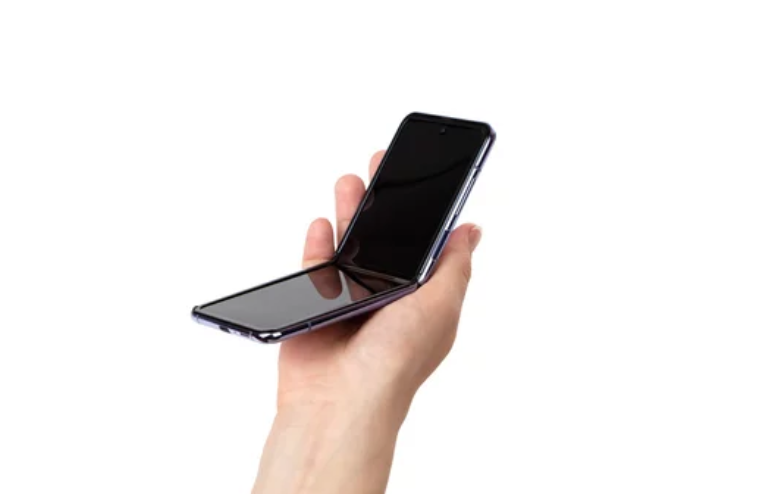
The **Samsung **Samsung Galaxy S26 Ultra is designed with cutting-edge display technology that delivers stunning visuals, vibrant colors, and ultra-smooth performance. With its advanced AMOLED display and high refresh rate, it offers one of the best smartphone viewing experiences available today. 📱✨
However, even premium smartphones can sometimes develop technical issues. One common problem reported by users is screen flickering, where the display randomly flashes, dims, or rapidly changes brightness. This can be annoying and may interfere with normal phone usage.
In this comprehensive guide, we’ll explore the main causes of screen flickering on the Samsung Galaxy S26 Ultra and walk through proven solutions to fix the issue quickly and effectively.
What Is Screen Flickering?
Screen flickering occurs when the display rapidly changes brightness or refresh cycles in an abnormal way. Instead of maintaining a stable image, the screen may:
- Flash intermittently
- Rapidly dim and brighten
- Show horizontal or vertical flickering lines
- Flicker when opening apps or scrolling
While it might look like a serious hardware problem, in many cases the issue is caused by software glitches, display settings, or third-party apps.
Common Causes of Screen Flickering
Understanding what triggers screen flickering can help you fix it faster. Below are the most common causes affecting the Galaxy S26 Ultra.
1. Adaptive Brightness Conflicts
The phone automatically adjusts screen brightness based on ambient lighting using sensors. Sometimes this adaptive brightness feature may cause unstable brightness changes, leading to flickering.
Solution
Disable adaptive brightness temporarily:
- Open Settings
- Tap Display
- Turn off Adaptive Brightness
If the flickering stops, the sensor calibration may have been causing the issue.
2. High Refresh Rate Instability
The Galaxy S26 Ultra supports high refresh rates for smoother scrolling and animations. While this improves performance, certain apps or system bugs may struggle with dynamic refresh switching.
Fix the Issue
Try lowering the refresh rate:
- Go to Settings
- Tap Display
- Select Motion Smoothness
- Switch from Adaptive or High (120Hz) to Standard (60Hz)
If the flickering disappears, the issue may be related to refresh rate transitions.
3. Third-Party App Conflicts
Some poorly optimized apps can interfere with system graphics and cause display problems.
Signs of App-Related Flickering
- Flickering occurs only when using certain apps
- The screen behaves normally on the home screen
- Problem started after installing a new app
How to Fix It
Boot the phone into Safe Mode:
- Hold the Power button
- Tap and hold Power Off
- Select Safe Mode
If flickering stops in Safe Mode, a third-party app is likely responsible. Uninstall recently installed apps until the problem disappears.
4. Software Bugs or System Glitches
Sometimes screen flickering is caused by temporary software bugs or corrupted system processes.
Quick Fix
Restart the device:
- Hold Power + Volume Down
- Tap Restart
A simple reboot clears temporary memory errors and often resolves display glitches.
5. Outdated System Software
Manufacturers frequently release software updates that include bug fixes, performance improvements, and display optimizations.
Update Your Phone
- Open Settings
- Tap Software Update
- Select Download and Install
Installing the latest update ensures your phone runs the most stable system version.
6. Overheating Issues
When the phone overheats, the display controller may reduce brightness or refresh rate, which can appear as flickering.
How to Prevent Overheating
- Avoid using the phone in direct sunlight ☀️
- Close heavy background apps
- Remove thick protective cases
- Avoid long gaming sessions while charging
Allowing the phone to cool down often stabilizes the display.
7. Display Hardware Damage
If the phone has been dropped or exposed to water, screen flickering may be caused by physical damage to the display or internal connectors.
Symptoms of Hardware Damage
- Persistent flickering across all apps
- Dead pixels or vertical lines
- Screen flickers even during boot
What to Do
In this situation, the safest option is to contact an authorized repair center for professional diagnosis.
Advanced Troubleshooting Methods
If the basic solutions don’t resolve the problem, you can try these advanced fixes.
Reset Display Settings
Resetting display configurations can eliminate conflicts between settings.
Steps:
- Go to Settings
- Tap General Management
- Select Reset
- Choose Reset Settings
This resets system settings without deleting personal data.
Clear System Cache
Temporary files stored by the system may occasionally cause display issues.
Clear Cache Partition
- Turn off the phone
- Press Power + Volume Up
- Enter Recovery Mode
- Select Wipe Cache Partition
- Restart the phone
This process clears temporary system files that may interfere with performance.
Perform a Factory Reset
If flickering persists after trying all other solutions, a factory reset may resolve deeper software conflicts.
Important
Back up your data before resetting.
Steps:
- Open Settings
- Tap General Management
- Select Reset
- Tap Factory Data Reset
After the reset, test the phone before reinstalling apps.
Preventing Screen Flickering in the Future
Taking preventive measures can help avoid display problems later.
Best Practices
- Keep your phone updated
- Avoid installing untrusted apps
- Maintain sufficient storage space
- Restart the device occasionally
- Protect the phone with a quality case
Regular maintenance helps ensure stable performance and extends the life of your device.
When to Seek Professional Support
If the flickering continues despite all troubleshooting steps, it may indicate a defective display panel or internal hardware issue.
You should seek professional repair if:
- The screen flickers constantly
- Display lines appear
- The phone overheats frequently
- Flickering occurs during boot
Authorized technicians can perform diagnostic tests and replace damaged components if necessary.
Final Thoughts
The Samsung Galaxy S26 Ultra delivers one of the most advanced smartphone displays on the market, but occasional screen flickering can still occur due to software bugs, display settings, or third-party apps.
Fortunately, most cases can be fixed quickly by adjusting brightness settings, updating software, restarting the device, or removing problematic apps. Only in rare situations does the issue stem from hardware damage.
By following the troubleshooting methods outlined in this guide, you can restore a stable, smooth display experience and enjoy the full capabilities of your Galaxy S26 Ultra once again. 📱✨
Also Read :