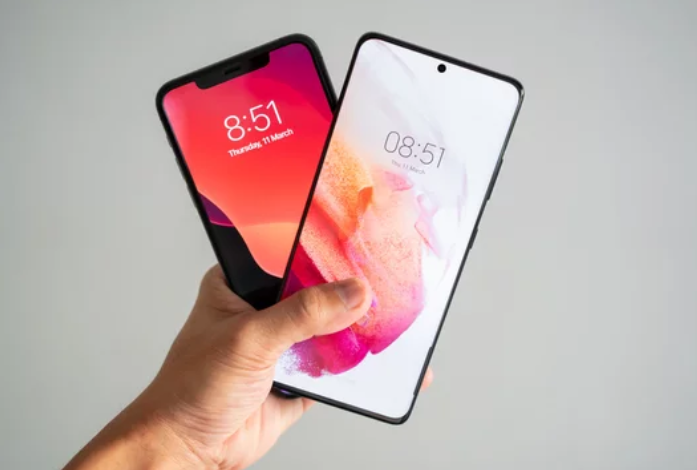
The Samsung Galaxy S26 Ultra is a flagship smartphone designed for speed, smooth multitasking, and advanced features. Yet, some users notice that over time, their device starts to lag, apps take longer to open, or animations feel choppy. Slow performance can be frustrating, but in most cases, it’s caused by software settings, background apps, or storage issues—not hardware problems.
This guide explains why your Samsung Galaxy S26 Ultra may be running slowly and how to fix it effectively.
1. Restart Your Phone
A simple restart can resolve many slow performance issues.
Why it works
Restarting clears temporary system memory, stops unnecessary background processes, and refreshes the operating system.
How to do it
- Press and hold the power button.
- Tap Restart.
- Wait for the phone to reboot.
Even if the device feels sluggish, a restart often delivers an immediate speed boost.
2. Close Unnecessary Background Apps
Many apps continue running even after you leave them, consuming RAM and processing power.
Fix
- Open the Recent Apps screen
- Swipe away apps you aren’t using
- Restrict background activity for rarely used apps in Settings > Apps > [App Name] > Battery
Reducing background activity frees system resources for the tasks you need.
3. Free Up Storage Space
Low storage can significantly impact performance.
Signs your storage is affecting speed
- Apps load slowly
- Camera and photos take longer to process
- System animations feel choppy
Fix
- Delete unused apps
- Remove duplicate or unnecessary files
- Move photos, videos, and documents to cloud storage
Aim to keep at least 20–25% of total storage free for optimal performance.
4. Clear App and System Cache
Temporary files accumulate over time and may cause slowdowns if corrupted.
How to clear app cache
- Open Settings
- Go to Apps
- Select the app causing issues
- Tap Storage > Clear Cache
How to clear system cache
- Turn off your phone
- Boot into Recovery Mode
- Select Wipe Cache Partition
- Restart the phone
Clearing cached files improves app responsiveness and system speed.
5. Reduce Animations and Widgets
While widgets and animated wallpapers enhance the look of your phone, they can slow down performance.
What to do
- Remove unnecessary home screen widgets
- Use static wallpapers
- Reduce system animations in Settings > Accessibility > Reduce Animations
This makes the interface feel smoother and more responsive.
6. Update Software and Apps
Outdated apps or system software can lead to conflicts, glitches, and slowdowns.
Fix
- Update all apps through the Play Store
- Check for System Updates under Settings > Software Update
Keeping software up to date ensures optimal performance and stability.
7. Check for Problematic Apps
Some apps may be poorly optimized and can slow down your phone.
Signs
- Phone slows down when using a specific app
- Battery drains unusually fast
- Device becomes warm when an app is running
Fix
- Update the app
- Clear its cache
- Uninstall if problems persist
8. Disable or Limit Background Sync
Continuous syncing consumes CPU and memory, slowing down your phone.
Fix
- Turn off auto-sync for apps you don’t need
- Limit background data usage in Settings > Connections > Data Usage
Reducing unnecessary sync activity improves speed and battery life.
9. Reset App Preferences
Misconfigured apps or permissions can affect performance.
How to reset
- Open Settings > Apps
- Tap More Options > Reset App Preferences
- Confirm the reset
This restores default app settings without deleting personal data.
10. Factory Reset as a Last Resort
If slow performance persists despite all other fixes, a factory reset may be necessary.
Important
- Backup your data first
- Go to Settings > General Management > Reset > Factory Data Reset
A reset restores the phone to its original state, eliminating persistent software issues.
Tips for Maintaining Smooth Performance
- Restart your phone occasionally
- Keep storage space available
- Avoid installing unverified apps
- Update apps and system software regularly
- Limit excessive home screen widgets and animations
Following these habits keeps your Samsung Galaxy S26 Ultra running fast and responsive over time.
Final Thoughts
Slow performance on the Samsung Galaxy S26 Ultra is usually related to software, storage, or background processes rather than hardware problems. By applying the steps above—like freeing up storage, closing unnecessary apps, updating software, and managing background activity—you can restore your phone’s speed and enjoy the smooth, high-performance experience it was designed to provide. ⚡📱
Also Read :