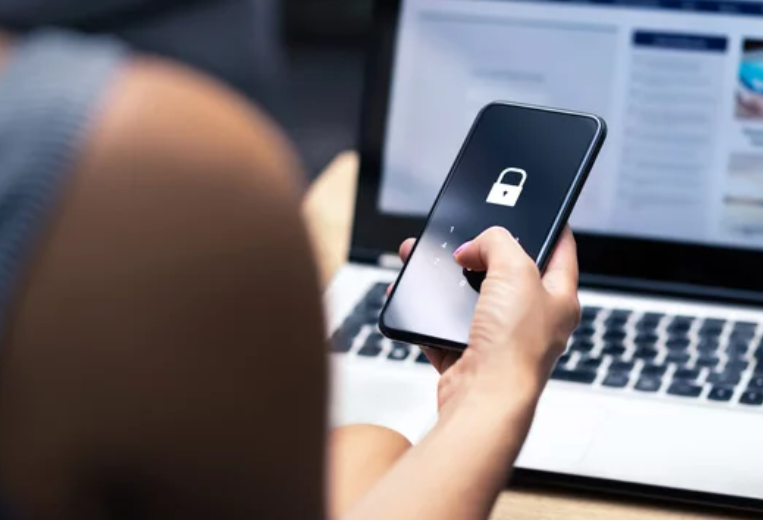
Smartphones are essential in daily life, storing personal data, banking apps, photos, and private conversations. Because of this, they are also a target for viruses, malware, and malicious apps. Whether you use a Samsung Android phone or an iPhone, a virus infection can slow down your device, drain your battery, or even steal your data.
The good news is that most smartphone viruses can be removed quickly if you act fast and follow the right steps.
In this SEO-optimized guide, you’ll learn how to identify, remove, and prevent viruses on your smartphone safely and effectively.
What Is a Smartphone Virus?
A smartphone virus is a type of malicious software (malware) that infects your device to:
- Steal personal information
- Display unwanted ads
- Track your activity
- Slow down performance
- Access apps without permission
Both Android and iOS devices can be affected, although Android devices are more commonly targeted due to open app installations.
Signs Your Phone May Have a Virus
Look out for these warning signs:
- Sudden battery drain
- Phone overheating without heavy use
- Strange pop-ups or ads
- Unknown apps installed
- Slow performance or frequent crashes
- High data usage
- Apps opening or closing on their own
If you notice these, your phone may be infected.
Step-by-Step: How to Remove Viruses from Smartphones
1. Restart Your Phone in Safe Mode (Android/Samsung)
Safe Mode disables third-party apps, helping you identify the problem.
- Press and hold the power button
- Tap and hold “Power Off”
- Select Safe Mode
If the problem disappears, a downloaded app is likely the cause.
2. Delete Suspicious Apps
Remove any apps you don’t recognize.
- Go to Settings > Apps
- Check recently installed apps
- Uninstall anything suspicious or unused
3. Clear Browser Data
Viruses often hide in browser cookies or cache.
- Clear browsing history
- Delete cookies and cached files
- Reset browser settings
4. Install a Trusted Security Scan (Android Only)
Samsung and Android devices can use built-in protection:
- Use Google Play Protect
- Run a full device scan
- Remove detected threats
You can also use trusted antivirus apps from the Play Store.
Advanced Virus Removal Methods
5. Remove Admin Access from Suspicious Apps
Some malware gains system control.
- Go to Security Settings
- Check Device Admin Apps
- Remove unknown permissions
6. Update Your Phone Software
Updates fix security vulnerabilities.
- Install latest system updates
- Update all apps
7. Reset Network Settings
Viruses sometimes affect internet connections.
- Reset Wi-Fi, mobile data, and Bluetooth settings
- Reconnect to secure networks
8. Factory Reset (Most Effective Solution)
If the virus persists:
- Back up your important data
- Perform a factory reset
- Set up your phone again carefully
This removes almost all malware.
How to Remove Viruses from iPhone
iPhones are more secure but still vulnerable.
1. Delete Suspicious Apps
- Remove unknown or recently installed apps
2. Clear Safari Data
- Go to Settings > Safari
- Clear history and website data
3. Update iOS
- Install the latest iOS update for security fixes
4. Reset Settings
- Reset all settings without deleting data
5. Factory Reset (If Needed)
- Erase all content and settings
- Restore from a clean backup
Common Mistakes to Avoid
Avoid these actions when dealing with viruses:
- Downloading apps from unknown sources
- Clicking suspicious links
- Ignoring security warnings
- Using outdated software
- Installing multiple antivirus apps at once
How to Prevent Smartphone Viruses
Prevention is always better than cleanup.
1. Download Apps Only from Official Stores
- Google Play Store for Android
- Apple App Store for iPhone
2. Keep Software Updated
Updates patch security vulnerabilities.
3. Avoid Clicking Unknown Links
Phishing messages are a common infection method.
4. Use Strong Passwords and 2FA
Protect your accounts with extra security layers.
5. Review App Permissions
Remove unnecessary access to camera, microphone, and location.
Samsung-Specific Protection Tips
- Use Samsung Knox security
- Enable Play Protect scanning
- Use Secure Folder for sensitive data
iPhone-Specific Protection Tips
- Enable Face ID or Touch ID
- Use Apple’s built-in privacy features
- Keep iCloud backups secure
When to Seek Professional Help
Visit a technician or official service center if:
- Virus returns after factory reset
- Phone behaves abnormally even after cleanup
- You cannot access settings or apps
Final Thoughts: Keep Your Smartphone Clean and Secure
Viruses can seriously affect your smartphone’s performance and privacy, but they are usually easy to remove if detected early. By uninstalling suspicious apps, updating your system, and performing a factory reset if necessary, you can restore your phone to normal.
Whether you’re using a Samsung or iPhone, staying cautious and following good security habits is the best way to prevent future infections.
Also Read :