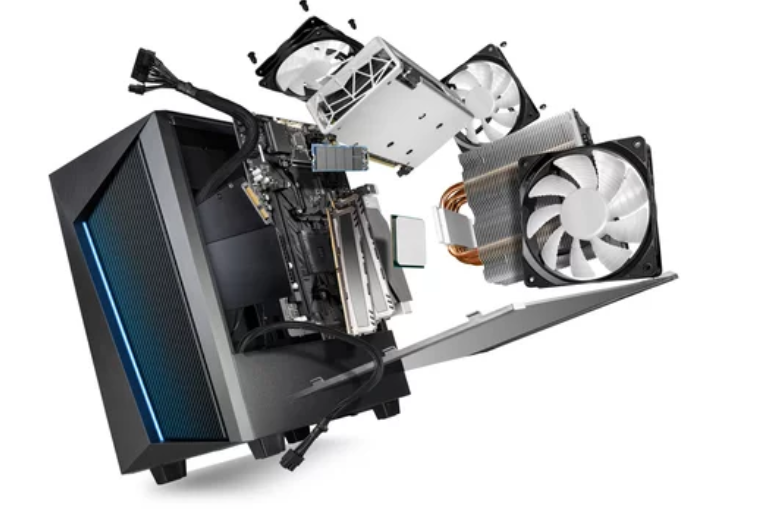
PC hardware problems can bring productivity to a standstill. While beginners rely on trial and error, professionals follow a structured, efficient approach that quickly identifies the root cause and prevents further damage. The good news? You don’t need to be an IT engineer to troubleshoot PC hardware like a pro—you just need the right mindset, tools, and techniques.
This in-depth guide teaches you professional-level PC hardware troubleshooting methods, from systematic diagnostics to advanced component testing. Whether you’re a power user, technician-in-training, or business professional, this article will help you diagnose and fix hardware problems with confidence.
What Professional PC Hardware Troubleshooting Really Means
Troubleshooting like a pro is not about guessing—it’s about logic, observation, and process. Professionals:
- Isolate the problem
- Test one variable at a time
- Use evidence, not assumptions
- Protect data and hardware
- Document findings
This approach saves time, reduces risk, and leads to accurate solutions.
Step 1: Start With a Structured Diagnostic Process
The Pro Troubleshooting Mindset
Before touching the hardware:
- Identify the exact symptoms
- Determine when the issue started
- Note recent changes (updates, upgrades, power outages)
- Reproduce the problem if possible
Professionals never skip this step—it often reveals the cause immediately.
Step 2: Eliminate Software as the Cause
Many “hardware problems” are actually software-related.
Pro-Level Software Checks
- Boot into Safe Mode
- Check system logs and error messages
- Update or roll back drivers
- Scan for malware
- Test with a clean OS boot
If the problem persists after these steps, hardware is likely involved.
Step 3: Master Power and Boot Diagnostics
Common Power-Related Symptoms
- PC won’t turn on
- Fans spin but no display
- Random restarts
- System shuts down under load
Pro Troubleshooting Techniques
- Test wall outlet and power cable
- Use a PSU tester (desktop)
- Disconnect non-essential components
- Check motherboard power LEDs
- Inspect for burnt smells or marks
Power issues are foundational—no other troubleshooting matters if power is unstable.
Step 4: Use the “Minimum Hardware” Test
Professionals often strip systems down to essentials.
Minimal Boot Configuration Includes:
- Motherboard
- CPU with cooler
- One RAM stick
- Power supply
- Integrated graphics (if available)
If the system boots successfully, add components back one at a time until the issue returns. This isolates faulty hardware quickly.
Step 5: Diagnose Overheating Like an Expert
Professional Indicators of Overheating
- Thermal throttling
- Sudden shutdowns
- Fan noise spikes
- Performance drops under load
Pro Solutions
- Monitor temperatures in real time
- Clean dust thoroughly
- Reapply thermal paste
- Improve airflow design
- Replace failing fans
Overheating is a silent performance killer professionals always monitor.
Step 6: Test RAM the Professional Way
Advanced RAM Diagnostics
- Test each module individually
- Swap RAM slots
- Run extended memory tests
- Verify voltage and timing settings in BIOS
Even minor RAM instability can cause major system issues.
Step 7: Evaluate Storage Devices Thoroughly
Pro-Level Storage Checks
- Review SMART data
- Listen for mechanical noises
- Check read/write performance
- Inspect SATA or NVMe connections
Professionals always back up data before performing storage diagnostics.
Step 8: Troubleshoot Display and GPU Issues Like a Technician
Advanced GPU Troubleshooting
- Test with integrated graphics
- Reseat the graphics card
- Clean GPU heatsinks
- Check power connectors
- Test under load
Graphics issues are often caused by overheating or power delivery problems.
Step 9: Inspect the Motherboard and Internal Connections
What Pros Look For
- Swollen capacitors
- Loose or misaligned cables
- Bent CPU socket pins
- Burn marks or corrosion
- BIOS error codes
Motherboard diagnosis requires patience and careful visual inspection.
Step 10: Decode BIOS Beeps and LED Error Codes
Professionals rely on system signals.
Common Diagnostic Indicators
- Beep codes
- Debug LEDs
- POST error messages
These codes point directly to failing components, saving hours of guesswork.
Step 11: Stress Testing and Validation
After repairs, professionals validate stability.
Pro Testing Methods
- Stress CPU and GPU
- Monitor temperatures under load
- Test memory stability
- Check long-term uptime
Fixing the problem isn’t enough—it must stay fixed.
Step 12: Document and Prevent Future Failures
Professional Best Practices
- Document issues and fixes
- Schedule regular cleaning
- Replace aging components
- Monitor system health continuously
- Use quality power protection
Professionals think long-term, not just quick fixes.
Common Pro Mistakes to Avoid
- Skipping basic checks
- Changing multiple variables at once
- Ignoring early warning signs
- Forcing components into place
- Failing to back up data
Even experts make mistakes—but they learn from them.
When Even Pros Call for Backup
Seek specialized help when:
- Data recovery is required
- Motherboard-level repair is needed
- Laptop micro-components fail
- Electrical damage is suspected
Knowing when to stop is part of professional troubleshooting.
Final Thoughts: Think Like a Pro, Fix Like a Pro
Troubleshooting PC hardware like a pro is about discipline, observation, and methodical testing—not advanced degrees or expensive tools. By following a structured approach, isolating components, and validating results, you can diagnose hardware issues faster and more accurately than ever.
With these expert techniques, you’ll not only fix today’s PC problems but also prevent tomorrow’s failures—saving time, money, and frustration while keeping your systems running at peak performance.
Also Read :