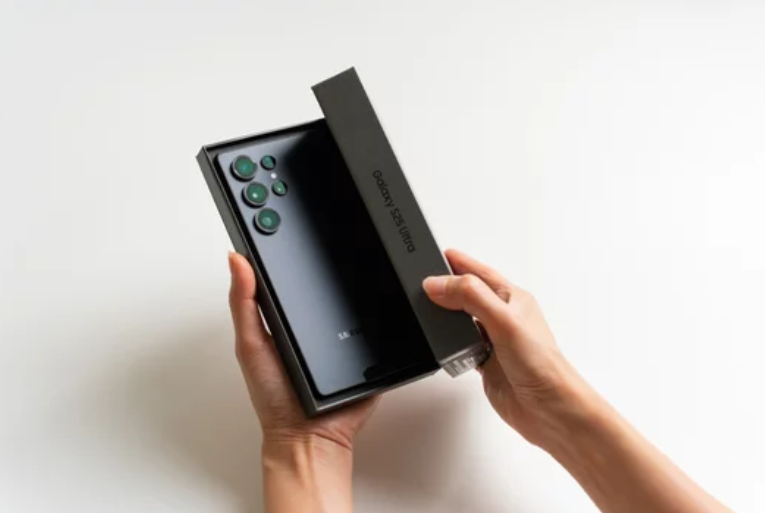
The Samsung Galaxy S26 Ultra is one of the most advanced smartphones available, packed with powerful hardware, intelligent software, and cutting-edge features. But even the most sophisticated devices can occasionally experience problems. You might notice slow performance, connectivity issues, battery drain, or apps that refuse to work properly.
The good news is that most smartphone problems can be solved without professional repair. With the right troubleshooting steps, you can quickly diagnose the issue and restore your phone to normal performance.
This complete guide walks you through practical solutions to fix almost any Samsung Galaxy S26 Ultra issue, from simple glitches to more persistent problems.
Step 1: Restart Your Phone First
Before trying complex solutions, always start with a simple restart.
Why restarting helps
Restarting your phone clears temporary system memory and stops background processes that may be causing glitches.
How to do it
- Press and hold the power button.
- Select Restart.
- Wait for the phone to reboot.
Many minor issues—such as slow performance or temporary app crashes—are resolved with this basic step.
Step 2: Check for Software Updates
Outdated software can cause bugs, performance issues, and compatibility problems.
How to check for updates
- Open Settings
- Tap Software Update
- Select Download and Install
Updates often include security patches and performance improvements that fix known problems.
Step 3: Update Your Apps
Sometimes the issue is not the phone itself but outdated applications.
Common signs of outdated apps
- Apps crashing frequently
- Apps failing to open
- Missing features
Fix
Open your app store and update all installed apps to ensure they are compatible with your phone’s operating system.
Step 4: Clear App Cache
Cached files help apps load faster, but over time they may become corrupted and cause problems.
Symptoms of cache problems
- Slow apps
- Apps freezing
- Unexpected crashes
How to clear cache
- Open Settings
- Tap Apps
- Select the problematic app
- Tap Storage
- Choose Clear Cache
This removes temporary files without deleting personal data.
Step 5: Free Up Storage Space
Low storage can significantly slow down your Samsung Galaxy S26 Ultra.
Signs of low storage
- Phone lagging
- Camera taking longer to process photos
- Apps loading slowly
Solutions
- Delete unused apps
- Remove duplicate photos and videos
- Move files to cloud storage
Keeping enough free storage helps maintain smooth performance.
Step 6: Fix Wi-Fi and Network Problems
Connectivity problems are among the most common smartphone issues.
Troubleshooting steps
- Toggle Wi-Fi off and on
- Restart your router
- Reset network settings
Resetting network settings often resolves persistent connectivity issues.
Step 7: Solve Battery Drain Problems
Battery drain can occur due to heavy apps or background processes.
How to improve battery life
- Reduce screen brightness
- Turn off unused features like Bluetooth or GPS
- Enable battery optimization
Monitoring battery usage in settings helps identify apps consuming excessive power.
Step 8: Fix Overheating Issues
If your phone becomes unusually warm, it may be performing intensive tasks.
Common causes
- Long gaming sessions
- Recording high-resolution video
- Running multiple apps simultaneously
Solutions
- Close unnecessary apps
- Avoid charging while using demanding apps
- Allow the phone to cool down naturally
Step 9: Fix Bluetooth Connection Problems
Bluetooth devices sometimes fail to connect or disconnect unexpectedly.
Simple fixes
- Turn Bluetooth off and on
- Forget and reconnect the device
- Restart both devices
This refreshes the connection and resolves most pairing problems.
Step 10: Fix Camera Issues
The camera is one of the most advanced features on the Samsung Galaxy S26 Ultra, but it may occasionally lag or malfunction.
Quick solutions
- Clear the camera app cache
- Restart the phone
- Update the camera software
These steps often restore normal camera performance.
Step 11: Fix Fingerprint or Face Unlock Problems
Biometric authentication sometimes stops working correctly.
Troubleshooting tips
- Clean the screen or camera lens
- Re-register fingerprints or face data
- Remove thick screen protectors that block sensors
This improves recognition accuracy.
Step 12: Clear the System Cache Partition
If your phone still experiences glitches, clearing the system cache partition may help.
Why this works
System cache stores temporary operating system data. Clearing it removes outdated files that may conflict with newer software.
General process
- Turn off the phone
- Boot into recovery mode
- Select Wipe Cache Partition
- Restart the device
This step does not delete personal data.
Step 13: Boot Into Safe Mode
Safe Mode helps determine if a third-party app is causing problems.
What Safe Mode does
It temporarily disables all third-party apps.
If the phone works normally in Safe Mode
A recently installed app is likely responsible for the issue.
Uninstall suspicious apps to fix the problem.
Step 14: Perform a Factory Reset (Last Resort)
If none of the troubleshooting steps work, a factory reset may be necessary.
Important
A factory reset deletes all data, so always back up your files first.
When to consider this option
- Persistent software bugs
- Severe performance problems
- Multiple apps failing simultaneously
After resetting, the phone returns to its original software state.
Preventing Future Problems
Maintaining your Samsung Galaxy S26 Ultra properly can prevent many issues before they appear.
Best practices
- Install updates regularly
- Restart your phone occasionally
- Avoid installing suspicious apps
- Keep sufficient storage space available
- Use original accessories when possible
These habits help ensure stable performance.
Final Thoughts
Even the most advanced smartphones can experience occasional glitches, but most problems are easy to fix with simple troubleshooting steps. Whether you’re dealing with battery drain, connectivity issues, slow performance, or app crashes, following this guide can help restore your phone quickly.
The Samsung Galaxy S26 Ultra remains a powerful device capable of excellent performance when properly maintained. With the right troubleshooting knowledge, you can solve most issues yourself and keep your phone running smoothly for years.
If you want, I can also create SEO blog topics, FAQs, or troubleshooting checklists related to Samsung smartphone problems to help expand your content strategy.
Also Read :