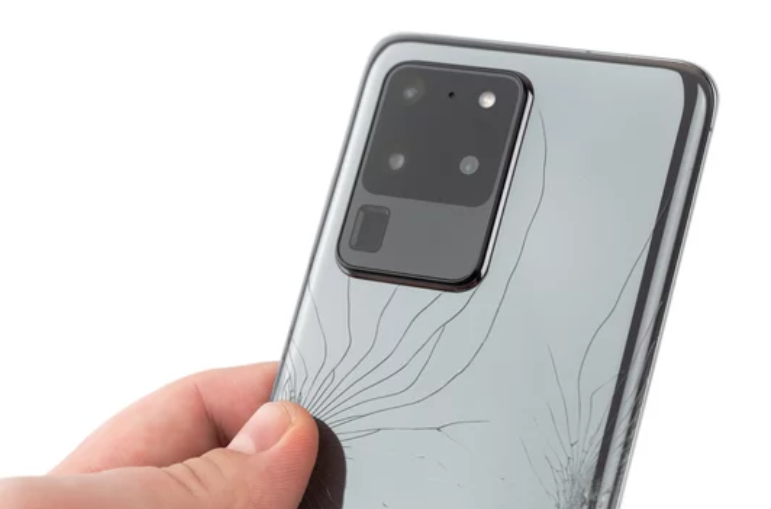
The Samsung Galaxy S26 Ultra is one of the most advanced smartphones on the market, packed with cutting-edge features, high-performance hardware, and a stunning display. However, even flagship devices can encounter occasional problems—from software glitches to connectivity issues, battery concerns, and hardware malfunctions.
Whether you’re experiencing WiFi disconnections, system crashes, app issues, or display problems, this comprehensive guide provides practical solutions to fix almost any Samsung Galaxy S26 Ultra problem quickly and effectively.
Common Problems on Samsung Galaxy S26 Ultra
Understanding the types of issues that users commonly face can help you troubleshoot more efficiently.
1. Connectivity Issues
- WiFi keeps disconnecting
- Bluetooth fails to pair or disconnects
- Mobile network drops or weak signals
2. System and Software Glitches
- Device freezes, crashes, or restarts unexpectedly
- Apps crash or freeze frequently
- Software update fails or gets stuck
3. Display and Camera Problems
- Screen flickering, black screen, or unresponsive touch
- Blurry or malfunctioning camera
4. Battery and Charging Issues
- Rapid battery drain
- Charging fails or slows down unexpectedly
5. GPS and Navigation Problems
- Location not accurate
- GPS keeps disconnecting in apps
6. Boot and Startup Problems
- Stuck on Samsung logo
- Boot loops or failure to start
Step-by-Step Fixes for Samsung Galaxy S26 Ultra Problems
Here’s a detailed guide to solving each category of problems.
1. Fixing Connectivity Issues
WiFi Problems
- Restart your router and phone.
- Forget and reconnect to your network.
- Disable Smart Network Switch in WiFi settings.
- Reset network settings via Settings → General Management → Reset → Reset Network Settings.
Bluetooth Issues
- Turn Bluetooth off and on.
- Delete paired devices and reconnect.
- Clear cache for Bluetooth via Settings → Apps → Bluetooth → Storage → Clear Cache.
Mobile Network Issues
- Check SIM card placement.
- Switch Airplane Mode on and off.
- Reset network settings as described above.
2. Fixing System and Software Glitches
Force Restart
- Press Power + Volume Down for 10–15 seconds.
Clear Cache and App Data
- Settings → Apps → Select App → Storage → Clear Cache.
- For system glitches, wipe cache partition via Recovery Mode (Volume Up + Power button).
Safe Mode
- Boot into Safe Mode (Power On → hold Volume Down) to isolate problematic apps.
- Uninstall any apps causing crashes.
Software Update
- Always run Settings → Software Update → Download and Install to fix bugs.
3. Display and Camera Fixes
Black or Flickering Screen
- Restart the phone.
- Boot into Safe Mode to check for app conflicts.
- Wipe cache partition in Recovery Mode.
Camera Issues
- Clear camera app cache.
- Restart the phone and test the camera.
- If blurry, clean lenses and ensure software is updated.
4. Battery and Charging Solutions
Battery Drain
- Check Battery Usage in settings for apps consuming too much power.
- Enable Power Saving Mode for longer battery life.
- Disable unnecessary features like background apps or location services.
Charging Problems
- Use original Samsung charger and cable.
- Clean the charging port.
- Restart the device before charging if unresponsive.
5. GPS and Navigation Fixes
- Enable High Accuracy Mode under Settings → Location → Mode.
- Clear Maps or GPS app cache.
- Toggle Airplane Mode off and on.
- Restart the phone to reset GPS modules.
6. Boot and Startup Solutions
Stuck on Samsung Logo / Boot Loop
- Force restart the phone.
- Boot into Safe Mode.
- Wipe cache partition in Recovery Mode.
- Perform a Factory Reset if all else fails.
7. Performing Resets Safely
Soft Reset
- Simple restart to fix minor glitches.
Network Reset
- Resets WiFi, Bluetooth, and mobile networks.
Factory Data Reset
- Erases all data and restores original settings (Settings → General Management → Reset → Factory Data Reset).
⚠️ Always backup your data before proceeding.
8. Preventive Tips to Avoid Problems
- Keep software and apps updated.
- Regularly restart your device.
- Avoid installing untrusted third-party apps.
- Maintain enough storage space.
- Use original chargers and cables to avoid hardware issues.
- Clear cache periodically to maintain system performance.
When to Contact Samsung Support
If issues persist despite all troubleshooting:
- Repeated boot loops after factory reset.
- Hardware damage suspected (screen, battery, or internal components).
- Severe software corruption that cannot be fixed via Safe Mode or updates.
Visit an authorized Samsung service center for professional diagnostics.
Final Thoughts
The Samsung Galaxy S26 Ultra is an exceptionally powerful smartphone, but like all devices, it can experience occasional problems. Most issues—from connectivity and system glitches to battery or GPS errors—can be fixed using simple troubleshooting steps like restarting the device, clearing caches, updating software, or performing resets.
Also Read :