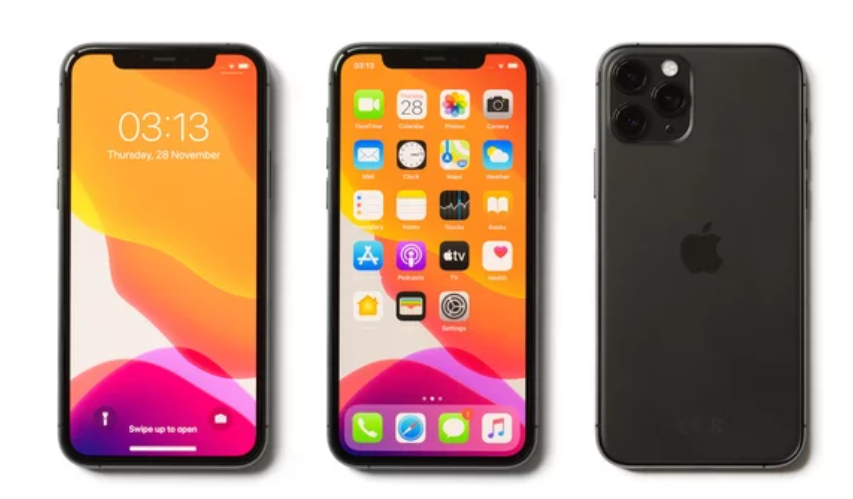
The Apple iPhone 17 represents the latest evolution in smartphone technology, delivering top-tier performance, advanced AI capabilities, and a seamless user experience. But even the most sophisticated devices aren’t immune to bugs and glitches—especially in the early stages after release.
If your iPhone 17 is acting strangely—freezing, crashing, overheating, or failing to connect—this ultimate guide will help you diagnose and fix every common issue quickly and effectively.
What Causes iPhone 17 Bugs and Glitches?
Before diving into fixes, it’s important to understand why these issues occur. Most iPhone 17 bugs are triggered by:
- Early iOS software bugs
- App compatibility issues
- Overloaded storage or RAM
- Network instability
- Incorrect system settings
The good news? Most of these problems are temporary and easy to fix.
1. Random Freezing and Screen Unresponsiveness
Symptoms
- Screen stops responding to touch
- Apps freeze mid-use
- Delayed gestures
How to Fix
- Perform a force restart (quickly press volume up, volume down, then hold power button)
- Remove faulty screen protectors
- Update to the latest iOS version
- Reset all settings if the issue persists
2. Apps Crashing or Not Opening
Symptoms
- Apps close unexpectedly
- Apps fail to launch
- Frequent crashes during use
Solutions
- Update apps via the App Store
- Delete and reinstall problematic apps
- Restart your device
- Ensure sufficient storage space
3. iPhone 17 Overheating Issues
When It Happens
- During gaming or video editing
- While charging
- In hot environments
Fixes
- Avoid heavy usage while charging
- Remove your phone case
- Close background apps
- Use certified charging accessories
4. Battery Draining Too Fast
Common Causes
- Background processes
- High screen brightness
- Software inefficiencies
Fixes
- Enable Low Power Mode
- Disable background app refresh
- Lower brightness or enable auto-brightness
- Check battery usage in settings
5. Wi-Fi and Network Connectivity Problems
Issues
- Slow internet speeds
- Frequent disconnections
- Wi-Fi not connecting
Solutions
- Toggle Wi-Fi or Airplane Mode
- Restart your router
- Forget and reconnect to the network
- Reset network settings
6. Bluetooth Pairing Problems
Symptoms
- Devices won’t connect
- Frequent disconnections
Fixes
- Turn Bluetooth off and on
- Restart both devices
- Forget and re-pair devices
- Ensure devices are within range
7. Camera Glitches and Poor Image Quality
Common Issues
- Blurry photos
- Focus problems
- Camera app freezing
Fixes
- Clean the camera lens
- Restart the Camera app
- Update iOS software
- Adjust camera settings like HDR and Night Mode
8. Face ID Not Working Properly
Why It Happens
- Dirty sensors
- Lighting issues
- Changes in appearance
Solutions
- Clean the front camera
- Reset and reconfigure Face ID
- Ensure your face is clearly visible
- Avoid obstructions like sunglasses
9. Charging and Power Issues
Problems
- Slow charging
- Phone not charging
- Charging interruptions
Fixes
- Clean the charging port
- Use original or certified chargers
- Try a different cable or adapter
- Restart your phone
10. Lagging and Performance Drops
Symptoms
- Slow app switching
- Delayed responses
- Overall sluggish performance
Solutions
- Restart your device regularly
- Delete unused apps and files
- Disable unnecessary animations
- Keep at least 20% storage free
11. Sound and Audio Bugs
Issues
- No sound during calls
- Distorted audio
- Low speaker volume
Fixes
- Check volume settings
- Clean speaker grills
- Disable Bluetooth
- Restart your device
12. Notification Glitches
Problems
- Notifications not appearing
- Delayed alerts
Solutions
- Check notification settings
- Turn off Focus or Do Not Disturb mode
- Restart your phone
- Reinstall affected apps
13. 5G and Cellular Network Issues
Symptoms
- Weak signal
- Slow mobile data
- Frequent network drops
Fixes
- Toggle Airplane Mode
- Switch between 5G and LTE
- Update carrier settings
- Contact your network provider
14. Storage Bugs and System Glitches
Issues
- Storage showing incorrect usage
- Phone slowing down due to full storage
Solutions
- Clear cache and temporary files
- Delete unused apps and media
- Use cloud storage services
- Restart your device
15. Software Bugs After Updates
Why It Happens
New updates may introduce temporary bugs before patches are released.
Solutions
- Wait for follow-up updates
- Restart your device
- Reset all settings
- Avoid unstable beta updates
Advanced Fixes for Persistent Issues
Reset All Settings
- Does not delete data
- Fixes system-level glitches
Factory Reset
- Erases all data
- Best for serious or persistent bugs
⚠️ Always back up your data before performing a factory reset.
Pro Tips to Prevent iPhone 17 Bugs
- Keep your iOS updated
- Avoid installing too many apps
- Restart your phone weekly
- Use high-quality accessories
- Monitor battery and storage usage
When to Contact Apple Support
If your Apple iPhone 17 continues to experience issues despite trying all fixes, it may indicate a hardware problem. In such cases:
- Visit an authorized service center
- Contact Apple Support
- Check your warranty status
Final Thoughts
The iPhone 17 is a powerful and innovative device, but occasional bugs and glitches are inevitable—especially in the early stages. Fortunately, most issues are easy to fix with the right approach.
By following this ultimate guide, you can troubleshoot and resolve nearly every common problem, ensuring your iPhone 17 performs at its best every day.
Also Read :