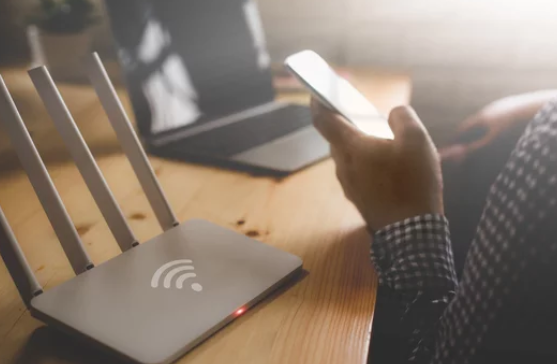
Wi-Fi has become essential for work, school, streaming, and daily life. But even the best internet plans can be disrupted by slow speeds, dropped connections, and dead zones. Fortunately, most Wi-Fi issues can be solved with simple troubleshooting steps. Knowing these essential Wi-Fi tips can save time, reduce frustration, and improve your home network’s performance.
This comprehensive guide walks you through the most effective Wi-Fi troubleshooting tips every user should know, helping you fix problems quickly and maintain a reliable connection.
1. Restart Your Modem, Router, and Devices
A classic but highly effective tip. Restarting clears temporary glitches and refreshes connections.
How to Do It
- Turn off your modem and router
- Unplug them for 30–60 seconds
- Turn on the modem first, wait for it to connect
- Turn on the router
- Restart your device (phone, laptop, or smart TV)
Most connectivity issues are resolved by this simple process.
2. Check Wi-Fi Signal Strength
Weak signals are a common cause of slow speeds and disconnections.
How to Improve Signal
- Move closer to the router
- Place the router in a central, elevated location
- Avoid thick walls, metal objects, and electronics that interfere
A stronger signal reduces lag and prevents dropped connections.
3. Forget and Reconnect to the Network
Corrupted or outdated network credentials can prevent proper connections.
Steps to Reconnect
- Open Wi-Fi settings
- Select your network and tap “Forget”
- Reconnect and re-enter the password
This resolves many “connected but no internet” errors.
4. Update Device Software and Drivers
Outdated software or network drivers can block Wi-Fi or reduce performance.
Devices to Update
- Phones: Update operating system and apps
- Laptops: Update OS and Wi-Fi adapter drivers
- Smart TVs or IoT devices: Update firmware
Regular updates improve compatibility and fix bugs.
5. Check for Interference
Other electronics or nearby networks can interfere with Wi-Fi.
Common Interference Sources
- Microwaves
- Cordless phones
- Bluetooth devices
- Neighboring Wi-Fi networks
Fix It
- Move the router away from interfering devices
- Switch to a less crowded Wi-Fi channel
- Use the 5 GHz band for faster speeds and reduced interference
6. Manage Connected Devices
Too many devices using the network can slow down or disrupt Wi-Fi.
Tips to Reduce Load
- Disconnect devices you’re not actively using
- Pause large downloads or cloud backups
- Enable Quality of Service (QoS) on your router to prioritize critical devices
Optimized usage ensures smoother performance for work, streaming, and gaming.
7. Reset Network Settings on Devices
If a single device has persistent Wi-Fi issues, resetting network settings can help.
How to Reset
- Phones: Settings → System → Reset → Reset Network Settings
- Laptops: Windows → Settings → Network & Internet → Network Reset
This clears old configurations and resolves connectivity conflicts.
8. Secure Your Wi-Fi Network
Unauthorized access can slow down your network and compromise security.
Security Best Practices
- Change default router credentials
- Use strong, unique passwords
- Enable WPA2 or WPA3 encryption
- Monitor connected devices regularly
A secure network ensures consistent speed and reliability.
9. Check Router Firmware and Settings
Outdated firmware or misconfigured settings can affect performance.
What to Do
- Update firmware regularly
- Enable dual-band Wi-Fi (2.4 GHz and 5 GHz)
- Adjust channel settings to reduce congestion
- Ensure MAC filtering or parental controls aren’t blocking devices
Proper configuration maximizes coverage and stability.
10. Reduce Dead Zones in Your Home
Wi-Fi dead zones are areas with weak or no signal, often caused by walls or large distances from the router.
How to Solve
- Reposition the router centrally and elevated
- Use Wi-Fi extenders or mesh systems for larger homes
- Consider wired Ethernet connections for stationary devices
Even minor changes in placement can improve signal throughout your home.
11. Test Internet Speed and Coverage
Regular testing helps identify the source of Wi-Fi issues.
Tools and Tips
- Use online speed tests near the router and in problem areas
- Compare wired vs wireless performance
- Test at different times of day to detect network congestion
This information helps determine if the problem is your network or your ISP.
12. Restart Your Modem If ISP Issues Persist
Sometimes the internet service itself is the problem.
When to Restart
- No internet across multiple devices
- Frequent disconnections
- Slow speeds even close to the router
If problems continue, contact your ISP to check for outages or line issues.
13. Use Wired Connections When Possible
For devices that need consistent speed, wired connections outperform Wi-Fi.
Ideal Devices
- Desktop computers
- Gaming consoles
- Smart TVs
- Home offices
Ethernet reduces network load and ensures stable performance.
14. Keep a Wi-Fi Troubleshooting Routine
Routine maintenance prevents recurring issues.
Recommended Actions
- Restart router weekly
- Update firmware and device software regularly
- Monitor connected devices
- Reposition router as needed
Proactive care keeps Wi-Fi fast and reliable over time.
Final Thoughts: Master Wi-Fi Troubleshooting
Wi-Fi issues are common, but most problems have simple solutions. By following these tips—restarting devices, updating software, securing networks, managing interference, and optimizing router placement—you can enjoy a faster, more stable, and reliable connection.
Being proactive with Wi-Fi troubleshooting not only solves current problems but also prevents future frustrations, ensuring smooth internet performance for work, entertainment, and everyday life.
Also Read :